Engineering an S7 program in TIA Portal is full of repetitive, well-defined work: creating tag tables, building Global DBs, importing blocks from source, moving blocks into groups, compiling and reading back errors. Siemens already exposes all of this through the Openness API. What has been missing is a clean way for an AI assistant to drive that API directly, without you copy-pasting code in and out of a chat window.
The Model Context Protocol (MCP) closes that gap. This article is a hands-on guide to building an MCP server that sits on top of TIA Openness V21, so an assistant like Claude can list your blocks, import tags from Excel, export code, and organize a project, all by calling well-typed tools. We will cover the protocol, the architecture, the V21-specific Openness changes that trip people up, the full tool catalog with example payloads, the safety model, and how to extend it.
Key features of this Siemens TIA Portal MCP server
- Built on Siemens TIA Portal Openness V21. Every action goes through the official Siemens Openness API, so the results are deterministic: the same tool call on the same TIA Portal project gives the same result, whatever the model is.
- Eight well-typed MCP server tools. Listing projects and blocks, importing tags and Global DBs from Excel, importing SCL and SimaticML XML, exporting blocks and organizing the project tree.
- Structured JSON results. The model reads a clean envelope instead of log text, which is the most effective way of preventing AI hallucination about what is actually in your project.
- Dry run by default. Write tools only simulate until you explicitly allow a change.
- Local and self-hosted. The server, the engine and TIA Portal run on your engineering PC. Only the conversation with the model leaves the machine, and even that can stay local if you use a self-hosted model.
How MCP actually works
MCP is an open standard introduced by Anthropic in late 2024 and now adopted across much of the AI ecosystem. The idea is simple: a server advertises a set of tools, and a client (the AI app) discovers and calls them over JSON-RPC. There are three messages you care about:
- initialize: the client and server agree on a protocol version and exchange capabilities.
- tools/list: the client asks for the available tools. The server returns each tool's name, a human-readable description, and a JSON Schema for its arguments.
- tools/call: the client invokes a tool by name with a JSON arguments object and receives a structured result.
The key difference from a plain command-line tool is discovery and typing. With a CLI you must already know the flags. With MCP the model reads the tool list and schemas at runtime and decides what to call. The transport in a local setup is stdio: the client launches the server process and they exchange newline-delimited JSON-RPC messages over standard input and output. That is the transport we use here.
The overall architecture
The server is intentionally split into two layers. The hard part, talking to Openness, lives in a .NET command-line engine. The MCP layer is a thin Python process that translates tool calls into engine invocations.
MCP client (Claude Desktop / Cursor / your code)
   |  JSON-RPC over stdio
   v
server.py  (Python, FastMCP)
   |  subprocess: ControlByteTiaCli.exe --attach-open --json
   v
ControlByteTiaCli.exe  (.NET Framework 4.8)
   |  Openness API
   v
TIA Portal V21  (running, project open)
Why two layers instead of one in-process server? Two reasons. First, Openness requires the full .NET Framework (4.8), which is the most reliable place to host the engineering logic. Second, keeping the engine as a standalone CLI means it is independently testable and scriptable, and the MCP server becomes a few dozen lines that assemble flags and shell out. The engine attaches to a running TIA instance with the project already open, does its work, and leaves your TIA window untouched.
Openness V21: the assembly split you must know about
If you have built Openness tools for V20 or earlier, the most important change in V21 is structural. The single monolithic Siemens.Engineering.dll has been broken into modular assemblies, and they moved into a new subfolder:
C:\Program Files\Siemens\Automation\Portal V21\PublicAPI\V21\net48
  Siemens.Engineering.Base.dll     (TiaPortal, Project, HW, Compiler)
  Siemens.Engineering.Step7.dll    (PlcSoftware, Blocks, Tags, Types)
  Siemens.Engineering.WinCC.dll    (HMI Classic)
  Siemens.Engineering.WinCCUnified.dll
  Siemens.Engineering.Safety.dll
  ...
In V20 you referenced one assembly. In V21 a PLC-focused tool references Base plus Step7. The namespaces are unchanged (Siemens.Engineering, Siemens.Engineering.SW, Siemens.Engineering.HW, Siemens.Engineering.Compiler), so most of your existing code compiles with only the references and the runtime resolver path updated.
In the project file you reference the two assemblies and turn Copy Local off:
<ItemGroup>
  <Reference Include="Siemens.Engineering.Base">
    <HintPath>C:\Program Files\Siemens\Automation\Portal V21\PublicAPI\V21\net48\Siemens.Engineering.Base.dll</HintPath>
    <Private>false</Private>
    <SpecificVersion>false</SpecificVersion>
  </Reference>
  <Reference Include="Siemens.Engineering.Step7">
    <HintPath>C:\Program Files\Siemens\Automation\Portal V21\PublicAPI\V21\net48\Siemens.Engineering.Step7.dll</HintPath>
    <Private>false</Private>
    <SpecificVersion>false</SpecificVersion>
  </Reference>
</ItemGroup>
Because Copy Local is off, the assemblies are not next to your executable, so you must resolve them at runtime. Register an AssemblyResolve handler before any Openness type is touched:
AppDomain.CurrentDomain.AssemblyResolve += (_, args) =>
{
    var name = new AssemblyName(args.Name).Name;
    if (name is null || !name.StartsWith("Siemens.Engineering", StringComparison.OrdinalIgnoreCase))
        return null;
    var path = Path.Combine(
        @"C:\Program Files\Siemens\Automation\Portal V21\PublicAPI\V21\net48",
        name + ".dll");
    return File.Exists(path) ? Assembly.LoadFrom(path) : null;
};
A few more V21 notes. The public key token of the assemblies changed, but if you resolve by simple name with SpecificVersion false, that does not affect you. The registry root moved to the 21.0 path. And because the binaries are not compatible across versions, keep a separate build per TIA version: a V20 build will not load V21 assemblies and the reverse is also true.
The engine and its JSON envelope
The .NET engine is a multi-mode CLI. Each mode maps to one operation: import tags and DBs from Excel, import a block from SCL, batch import SimaticML XML, export a block to SCL or XML, organize blocks, list projects, list blocks. For automation it also has a --json flag. In JSON mode all logs go to standard error and standard output carries a single structured envelope:
{
  "ok": true,
  "mode": "list-blocks",
  "project": "MyMachine",
  "plc": "PLC_1",
  "dryRun": true,
  "result": { "blocks": [ ... ], "types": [ ... ] },
  "compile": null,
  "error": null
}
Errors come back in the same shape with ok set to false and a message in error, so the caller never has to scrape a stack trace out of text. This envelope is what makes the tool results useful to a model: it reads result.blocks rather than forty lines of timestamps.
The MCP layer in Python
The server uses the official mcp SDK and its FastMCP helper. A single helper runs the engine with --json, parses standard out, and returns it. Each tool is a small function whose signature becomes the JSON Schema the client sees. Here is the shape of it:
from mcp.server.fastmcp import FastMCP
import subprocess, json, time

mcp = FastMCP("controlbyte-tia-mcp")

def _run(args: list[str]) -> str:
    cmd = [EXE] + args + ["--json"]
    proc = subprocess.run(cmd, capture_output=True, text=True,
                          encoding="utf-8", timeout=240)
    return (proc.stdout or "").strip()

@mcp.tool()
def list_blocks(plc: str | None = None, project_name: str | None = None) -> str:
    """List all blocks (OB/FB/FC/DB) and UDTs in the PLC of the open project."""
    return _run(["--list-blocks", "--dry-run", "--attach-open"])

if __name__ == "__main__":
    mcp.run()  # stdio transport
The docstring matters: it is the description the model reads when deciding whether to call the tool. The type hints become the argument schema. Optional parameters use a default of None.
Two robustness details are worth building in from the start. First, write operations default to a dry run, so a tool only changes the project when the caller explicitly opts in. Second, attaching to TIA can fail transiently if the application is momentarily busy or showing a modal dialog, so the helper retries a couple of times on errors like "operation timed out" or "RPC busy" before returning a clean JSON error.
MCP server tools: the full catalog
The demo exposes eight tools. Read-only tools never modify the project; write tools default to a dry run.
list_projects. Lists running TIA instances and the projects open in each. Fully read-only.
{ "ok": true, "mode": "list-projects",
  "result": { "instances": [ { "pid": 12612,
    "projects": [ { "name": "MyMachine", "path": "C:\\...\\MyMachine.ap21" } ] } ] } }
list_blocks. Returns the block and UDT tree of the PLC, each entry with its group path, type, and name. Useful to orient an assistant in an unfamiliar program.
import_tags_db. Imports PLC tag tables and Global DBs from an Excel file with Tags and DB worksheets. Parameters: excel_path, optional plc and project_name, dry_run (default true), and overwrite_db. A dry run reports counts without writing:
{ "ok": true, "mode": "excel", "dryRun": true,
  "result": { "tags": { "TablesCreated": 3, "TagsCreated": 19, "TagsSkipped": 0, "TagsFailed": 0 },
              "db":   { "Created": 3, "Skipped": 0, "Failed": 0 } } }
import_scl. Imports a block from an .scl file as an External Source and generates the FB, FC, or DB.
import_xml. Batch imports SimaticML XML for UDTs and blocks from a file or folder, with multi-pass dependency retry so types referenced by other types import in the right order.
export_scl. Exports a block or UDT to an .scl file. This works only for blocks authored in SCL or STL, because TIA cannot generate SCL source from a LAD or FBD block.
export_xml. Exports a block or UDT as SimaticML XML. This works for any language, so it is the general-purpose export.
organize_blocks. Moves blocks and UDTs into subgroups by naming convention, for example library blocks into a PackML group and robot types into a Robot group.
MCP server config: connecting Claude Desktop
You build the engine, create a small Python environment for the server, and register it with your client.
# 1. Build the engine
dotnet build .\src\ControlByteTiaCli\ControlByteTiaCli.csproj

# 2. Python environment for the MCP server
cd .\mcp-server
python -m venv .venv
.\.venv\Scripts\python.exe -m pip install "mcp[cli]"
Then add an entry to %APPDATA%\Claude\claude_desktop_config.json:
{
  "mcpServers": {
    "controlbyte-tia-mcp": {
      "command": "C:\\path\\to\\mcp-server\\.venv\\Scripts\\python.exe",
      "args": ["C:\\path\\to\\mcp-server\\server.py"],
      "env": {
        "TIA_MCP_EXE": "C:\\path\\to\\src\\ControlByteTiaCli\\bin\\Debug\\ControlByteTiaCli.exe"
      }
    }
  }
}
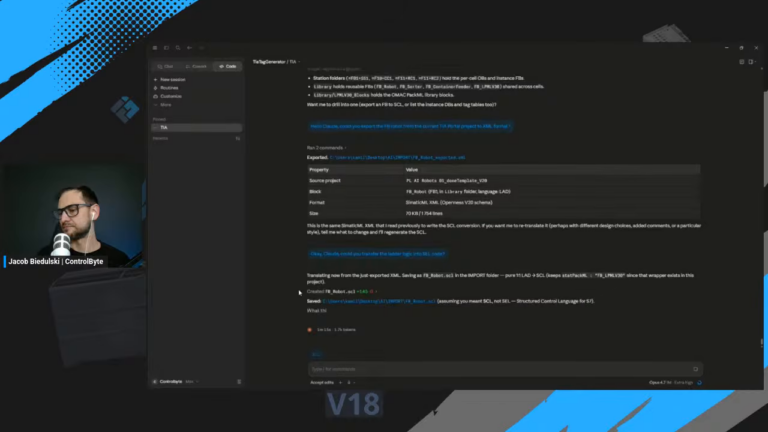
Restart the client, open your project in TIA Portal V21, and the controlbyte-tia-mcp tools appear. A prompt such as "list the blocks in the open TIA project" calls list_blocks and the model reads back the structured tree.
MCP server config for VS Code, Cursor and other clients
The same server works with any MCP client that can launch a local process over stdio. In VS Code (GitHub Copilot in agent mode), the MCP server config lives in a .vscode/mcp.json file in the workspace. The format is close to the Claude Desktop one: a "servers" object, a server name, "type": "stdio", the path to the Python interpreter as "command", server.py in "args", and TIA_MCP_EXE as an environment variable in "env". Cursor and Windsurf use an "mcpServers" block very similar to the Claude Desktop file shown above.
The environment variable matters more than it looks. The Python layer does not hard-code where the .NET engine lives, so one copy of server.py can drive a V21 build of the engine on one machine and a different build on another, simply by changing TIA_MCP_EXE in the client config.
Web-based assistants such as ChatGPT reach MCP servers over HTTP rather than stdio, so they cannot launch this server directly. That is one reason the optional HTTP transport sits on the roadmap below.
Writing your own client
You do not need a desktop app. The mcp SDK connects from your own code, lists the tools, and calls them:
import asyncio
from mcp import ClientSession, StdioServerParameters
from mcp.client.stdio import stdio_client

async def main():
    params = StdioServerParameters(command="python", args=["server.py"])
    async with stdio_client(params) as (read, write):
        async with ClientSession(read, write) as session:
            await session.initialize()
            tools = await session.list_tools()
            print([t.name for t in tools.tools])
            result = await session.call_tool("list_projects", {})
            print(result.content[0].text)

asyncio.run(main())
The Excel contract for tag and DB import
import_tags_db expects one .xlsx file with two case-sensitive worksheets.
The Tags sheet uses these columns in order: Name, DataType, LogicalAddress, Comment, TagTable. For example:
| Name        | DataType | LogicalAddress | Comment        | TagTable   |
|-------------|----------|----------------|----------------|------------|
| iStart_PB1  | Bool     | %I0.0          | Start button   | TT_Inputs  |
| qMotor1     | Bool     | %Q0.0          | Motor 1 output | TT_Outputs |
| wStep       | Int      | %MW12          | Step number    | TT_Memory  |
The DB sheet uses: DbName, MemberName, DataType, InitialValue, Comment, Retain. Rows that share a DbName go into one Global DB. Tag tables are created automatically if they do not exist, and tags that already exist are skipped rather than duplicated. The tool follows a simple naming convention: i for inputs, q for outputs, x for boolean flags, w for word and int, d for double word and dint, r for real, a DB_ prefix for Data Blocks, and a TT_ prefix for tag tables.
Use cases: what an AI agent can do in a TIA Portal project
The value of an MCP server is not that the model "knows" Siemens TIA Portal. It is that an AI agent can look at your real TIA Portal project, act through the Openness API and check the result. Typical use cases where this pays off today:
- Commissioning prep from an I/O list. Paste or attach the electrical I/O list, ask the assistant to turn it into the Excel contract, run import_tags_db as a dry run, review the counts, then run it for real. Dozens of tags land in the right tag tables with consistent names.
- Write SCL in natural language, import it as real blocks. Describe a motor or valve block in natural language, let the model write SCL source, save it as an .scl file and call import_scl. A source can also declare an instance DB with DATA_BLOCK "DB_Motor1" "FB_Motor", so the FB and its instance DB arrive together. The block then goes through the normal TIA Portal compiler, so syntax errors show up as compiler messages, not as guesses.
- Explore PLC structures in an unfamiliar program. On a project you inherited, list_blocks gives the model the full block tree with groups, so it can explain how the program is organized before you open a single network.
- Refactor and clean up. export_xml plus organize_blocks lets the assistant propose a new group structure, show it to you, and apply it on approval.
- Documentation. Exported SCL or SimaticML gives the model the actual PLC code to describe, which produces much better comments and handover notes than describing the program from memory.
The same tools work whether the CPU in the project is an S7-1200 or an S7-1500, because they operate on PLC software blocks and tags through Openness rather than on a specific controller.
Safety model
Driving an engineering tool from an LLM needs guard rails. The demo uses a conservative model:
- Dry run by default. Every write tool simulates unless the caller passes dry_run set to false. The first run of any mode should always be a dry run, so you can read back exactly what would change before it touches the project.
- Backup before the first write. The engine can copy the project folder into a backup directory before saving.
- Attach, do not take over. The server attaches to an already-open project and leaves it open. It never closes your TIA session.
- Transient retry. If an attach call fails because TIA is momentarily busy, it is retried automatically, and only a persistent failure is returned as a JSON error.
Stronger controls are reasonable next steps: an explicit per-write confirmation, dedicated handling for fail-safe (F) blocks, and an audit trail of tool calls. Treat those as roadmap rather than as built-in today.
Safety PLC code, hard interlocks and the real machine
One rule deserves its own heading: an LLM should never be the thing that keeps people safe. Safety functions belong in a safety PLC program written and validated by a qualified engineer, or in hard interlocks and a safety relay wired in the cabinet. This MCP server does not touch fail-safe blocks, and it is a good idea to keep it that way even after you extend it.
The same applies to commissioning. Everything the assistant produces is a draft. It compiles in TIA Portal, it may even run in PLCSIM, but testing the sequence, the interlocks and the failure modes has to be done on the real machine, with a person who understands the process. If you want a structured approach to fail-safe code in Siemens controllers, see our Safety Programming for Siemens PLCs course.
Performance and limits
The engine attaches to a live process, so most calls return in roughly a second or two. Opening a fresh project or compiling a large program takes longer, which is why the engine allows a generous timeout and the MCP helper uses a 240 second budget per call. Two structural limits to keep in mind: the tool operates on a project that is already open in TIA (it does not open offline files on its own), and listing or exporting very large blocks is bound by how fast Openness can serialize them.
Troubleshooting
- TIA must be running with the project open. The server attaches to a live process. If nothing is found, start TIA and open the project first.
- Run as the same Windows user. Openness only sees TIA processes started by the same user. Do not pair an elevated TIA with a non-elevated tool or the reverse.
- Openness license and group. You need the Openness license and membership in the local Siemens TIA Openness group, otherwise the API throws a security exception.
- FileNotFoundException for Siemens.Engineering.Base. The resolver cannot find the V21 net48 folder. Fix the path; do not copy the DLLs next to the executable.
- InvalidProjectVersionException. An older project opened through V21 needs an upgrade. Open it once in TIA V21, save, then use the tool, or attach to the already-open project.
- Culture errors on XML import. Comments in the XML reference a language not configured in the project. The importer sanitizes cultures, but check the project languages if it still fails.
Extending it with your own tools
Adding a capability follows the two-layer split. If the operation already exists as an engine flag, you only add a Python tool that builds the flag and calls the helper, then restart the client. If it is genuinely new, you add a flag and the logic in the .NET engine first, rebuild, then expose it in Python. A good first addition is a read-only tool such as reading a single block's source as text, or a compile-and-report tool that returns the compiler messages as structured JSON. The pattern is portable: any engineering system with an automation API can sit behind the same thin MCP layer.
Roadmap
The demo already returns structured JSON and retries transient attach errors. Natural next steps are a richer tool set (cross-references, read-only block source, compile and report), an optional HTTP transport for remote use, per-write confirmation, and structured results for every mode. None of these change the core idea: a small, well-typed surface over Openness that an assistant can use safely.
Frequently asked questions
Which TIA Portal version does this target?
V21 and its split assemblies. For V20 you need a separate build, because the Openness binaries are not compatible across versions.
Does it work on offline .ap21 files?
No. It attaches to a running TIA Portal instance that already has the project open.
Is anything sent to the cloud?
Only what your MCP client sends to its model. If you use a hosted model, the tool inputs and outputs you pass through it leave your machine; for air-gapped work, use a local model. The MCP server and the TIA connection are local.
What about cost?
The server and engine are just code on top of Openness. The real prerequisite is a valid TIA Portal Openness license, which Siemens licenses separately.
Can I use it with TIA Portal V19 or V17?
The architecture, yes. The build, no. TIA Portal V19 and Siemens TIA Portal V17 also expose Openness, but they ship a single Siemens.Engineering.dll instead of the V21 split assemblies, and each version needs its own build. Keep the Python MCP layer as it is, compile the engine against the Openness assemblies of your version and point TIA_MCP_EXE at that build.
Is there an official MCP server from Siemens?
Siemens has published an application example on integrating an MCP server with WinCC Unified PC Runtime, which is about runtime data rather than engineering. On the engineering side Siemens offers its own Industrial Copilot. A TIA Portal MCP server built on Openness, like the one in this guide, is a different approach: you decide which tools exist and which model sits behind them. You will also find several community TIA Portal MCP server projects on GitHub and in the awesome MCP servers lists; check what each repository can write to your project before connecting it.
Can GitHub Copilot, ChatGPT or Windsurf use this server?
GitHub Copilot in VS Code and Windsurf can, because they launch local MCP servers over stdio. ChatGPT and other web-based LLMs need a remote HTTP endpoint, which this demo does not expose yet.
Do I still need to know PLC programming?
Yes. The assistant is fast at repetitive engineering work, but you are the one who reviews the PLC code, compiles it, tests it and signs off. If you want to learn how to combine AI tools with TIA Portal in a structured way, have a look at our automation and PLC programming course with AI. For the CODESYS side of the same idea, read CODESYS MCP Server and Claude Code.