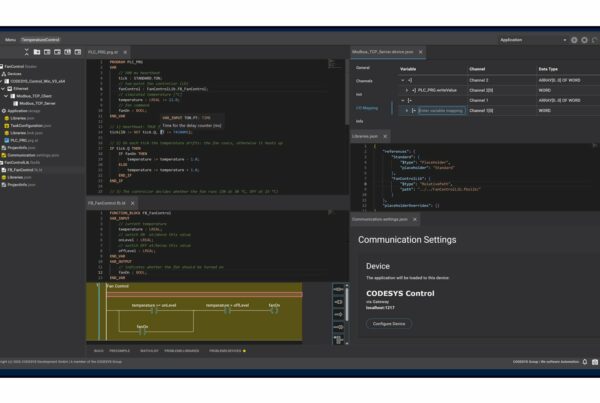
The CODESYS MCP server is a free bridge between the CODESYS IDE and an AI assistant - it lets you programmatically create POUs, function blocks, and Structured Text code using natural language. In this tutorial I'll walk you through installing the community toolkit from GitHub, connecting Claude Code, and generating a complete five-station pump control system in a few minutes. No Professional Developer Edition required.
What is the MCP Server in CODESYS and Why It Changes Everything
Model Context Protocol (MCP) is an open standard designed by Anthropic - the company behind Claude models. MCP gives LLMs secure, controlled access to external tools: databases, APIs, file systems, and now industrial automation IDEs. The CODESYS MCP server exposes IDE functions as "tools" for the AI model - Claude can then open projects, create POUs, write variable declarations and Structured Text implementations, trigger compilation, and read back errors.
This is a qualitative difference compared to plain copy-paste from a chat window. The AI doesn't generate code for you to paste - the AI operates directly on your CODESYS project: creates the function block folder, adds declarations, fills in the implementation, closes the project. You just describe what needs to be done.
There are two ways into this world: a paid official CODESYS add-on and a free community toolkit. Let's start with a comparison.
CODESYS AI-Supported Engineering vs MCP Toolkit
CODESYS recently launched its own "AI-supported Engineering" feature as part of the Professional Developer Edition. It's a paid package that integrates a language model with the IDE - generates POUs, analyzes existing code, adds comments, creates test blocks. A mature solution with vendor support, but it requires a subscription.
The second path is a community project on GitHub: codesys-mcp-toolkit by Johannes Pettersson. The toolkit runs a local MCP server that talks to CODESYS project files (.project) and to the IDE itself. Zero fees - you only pay for model tokens (or use a Claude Max subscription, which covers most projects easily).
Functionally both solutions do similar things: create POUs, function blocks, functions, declarations and implementations, handle properties and methods for object-oriented programming, compile the project, and read back errors. The difference lies in stability, ease of setup, and who's responsible for compatibility with new CODESYS versions. The community toolkit has been tested with CODESYS V3.5 SP22 Patch 1 - that's the version I used during recording and everything worked without issues.
If you work in the Siemens ecosystem, check out a similar approach for TIA Portal: TIA Portal MCP Server - AI Assistants Inside Your PLC Engineering.
Installing the CODESYS MCP Server Step by Step
The entire installation is done... through Claude Code. You don't need to type commands manually - just tell the model "install this toolkit from GitHub" and Claude follows the README instructions, only asking for confirmation at each command.
Step 1: Prerequisites
Before you run anything, make sure you have:
- Node.js 18+ (
node --versionshould returnv18.xor higher) - Git installed globally
- Claude Code (
npm install -g @anthropic-ai/claude-code) - CODESYS V3.5 SP22 (or a newer patch - older versions may have path issues)
- A Claude Pro/Max subscription or an Anthropic API key
Step 2: Clone the Repo and npm install via Claude
Open PowerShell in your working folder, trust the folder in Claude Code, and prompt:
Claude will run git clone, navigate to the folder, and execute npm install. You just click "Yes" at each command (or "Yes, and don't ask again" for repeating actions like npm install).
Step 3: Configure .mcp.json
The last step is pointing to the CODESYS executable. Claude generates a .mcp.json file in the project folder and asks you to confirm the path (default: C:\Program Files\CODESYS 3.5.22.0\CODESYS\Common\CODESYS.exe). After restarting Claude Code, you'll see in the terminal:
That means the MCP server is listening and Claude has access to CODESYS tools. From this point on, you can request project operations in natural language.
Creating FB_TwoPumpControl Through AI
Practical test: controlling a dual-pump station with fault logic and duty alternation. We create a function block FB_TwoPumpControl with inputs (bEnable, bDemand, bManualMode, bFaultPump1, bFaultPump2, tAlternateInterval), outputs (bAlarm, bRunPump1, bRunPump2), and logic that switches to the standby pump on fault.
Prompt for Claude Code:
Key gotcha: the CODESYS project must be closed in the IDE when the MCP server modifies it. Otherwise you'll get:
> The project is locked because it's already open in the CODESYS IDE (by 'Administrator' on 'LAPTOP'). The MCP server can't access it while the IDE has it locked.
Close the project (File → Close Project) or shut down CODESYS entirely, then re-run the prompt.
After confirmation, Claude creates the POU in about ten seconds, fills in declarations, and writes several dozen lines of ST. You open the project - the function block is already sitting under Application, ready to compile.
With a second prompt you instantiate it in PLC_PRG as an array of five stations:
Compile, deploy to the simulator, set bSystemEnable and bTestDemand to TRUE - pump 1 starts. Force abFaultP1[0] := TRUE - the standby pump kicks in immediately. The logic works without writing a single line by hand.
Common Problems and How to Work Around Them
Project lock. The most frequent error - the CODESYS IDE holds the project open. Close the project before every prompt that modifies the structure. Alternatively: kill the CODESYS process in Task Manager if a previous session left a lock file behind.
Token burn on large projects. A single function block is a few thousand tokens in input + output. Dozens of POUs + compilation + error readback can eat through the Claude Pro limit in one session. A Max subscription or API billing solves the problem.
Claude sometimes "forgets" the project path. In long sessions it helps to remind it every few prompts: "Work in folder C:\Users\Administrator\Documents\MCP server codesys v02". Without this, the model occasionally creates POUs in the wrong location.
Incomplete type declarations. Claude doesn't always guess whether you want TIME or TON, UINT or DINT. Be specific in your prompts, or ask for a review after generation: "List all VAR declarations with their types and comments."
For a refresher on classic blocks that AI frequently inserts into generated code: Triggers in CODESYS: R_TRIG and F_TRIG for edge detection and Complete guide to CODESYS counters (CTU, CTD, CTUD).
Summary
The CODESYS MCP server changes how you program PLCs - from typing ST line by line to having a conversation with an AI assistant that operates directly on your project. The community toolkit from GitHub gives you the full workflow for free: installation through Claude Code, function block creation, instantiation in PLC_PRG, simulation. The paid CODESYS Professional Developer Edition offers the same with official vendor support.
The key rule: close the IDE before every MCP operation, refine your prompts, use naming conventions consistent with your project. The rest - compilation, testing, fine-tuning - is classic automation engineer work.
FAQ
Does the CODESYS MCP server work with versions older than V3.5 SP22?
The community toolkit has been tested on V3.5 SP22 Patch 1. Older versions (SP19, SP20) may require path and parameter modifications in .mcp.json. The safest approach is to update CODESYS to the latest patch before installing the toolkit.
Do I need a Claude Max subscription for this to work?
No. It works with Claude Pro and pay-as-you-go through the Anthropic API. A Max subscription simplifies things for large projects because you don't worry about limits - but a single function block fits comfortably within Pro.
Will AI generate Safety-certified code compliant with ISO 13849?
Not without additional verification. An LLM can sketch the structure, but certified Safety code must be written and verified by an engineer with the proper qualifications - in accordance with EN ISO 13849-1 and IEC 61508. Treat AI like a junior engineer: it generates the skeleton, you do the review and validation testing.
What's the difference between the MCP toolkit and CODESYS Professional Developer Edition?
The community toolkit is free, open source, and community-maintained. PDE is an official CODESYS product with support, guaranteed compatibility with new versions, and integration with other CODESYS tools (e.g., CODESYS Automation Server). Functionally they do the same thing; the difference is price and SLA.
Does Claude Code understand prompts in languages other than English?
Yes. Claude is multilingual and handles prompts in Polish, German, French, and many other languages very well. Technical terminology (function block, POU, Structured Text) stays in the original English, but the rest of your prompt can be in whatever language you're most comfortable with.
---
Want to learn PLC programming from scratch so you can fully leverage tools like the CODESYS MCP server? Check out our Siemens PLC programming course at controlbyte.tech - we teach on real industrial projects, from variable declarations to complete process stations. AI will help you write faster, but only if you know what to write.
Author