Factory IO is 3D simulation software for automation training: it gives you a virtual factory with conveyors, sensors and actuators that your PLC program can control. In this tutorial you will learn how to connect Factory IO with Siemens TIA Portal (V15.1 to V20), first with the S7-PLCSIM simulator and then with a real S7-1200 or S7-1500 PLC. You only need TIA Portal with PLCSIM installed and Factory IO on the same Windows computer.
Example Project
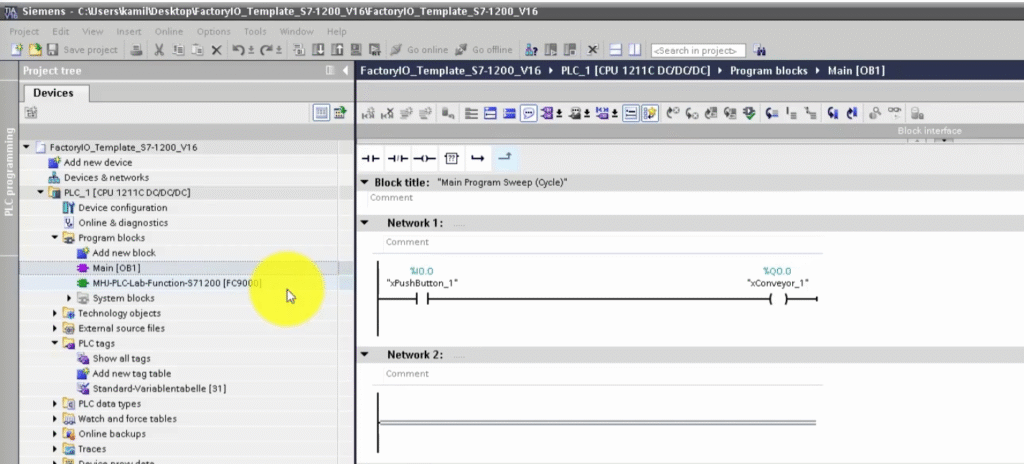
For these versions of TIA Portal, special template projects are available that enable proper communication between Factory I/O and the simulator. Without using a template, the connection will not work.
Download the appropriate template
- FactoryIO_Template_S7-1200_V15.zip - for S7-1200 PLCs
- FactoryIO_Template_S7-1500_V15.zip - for S7-1500 PLCs
👉 Templates marked as V15 are compatible with TIA Portal versions V15/16/17/18/19/20.
Configuring the Project in TIA Portal
- Open the downloaded template project corresponding to your controller (S7-1200 or S7-1500).
- Save the project under a new name (e.g., MyFirstProject).
- You can now start writing your program.
⚠️ Warning: In the existing OB1 block there is already Network 1 - do not delete it, as it is required for communication with Factory I/O.
Running the Simulation in S7-PLCSIM
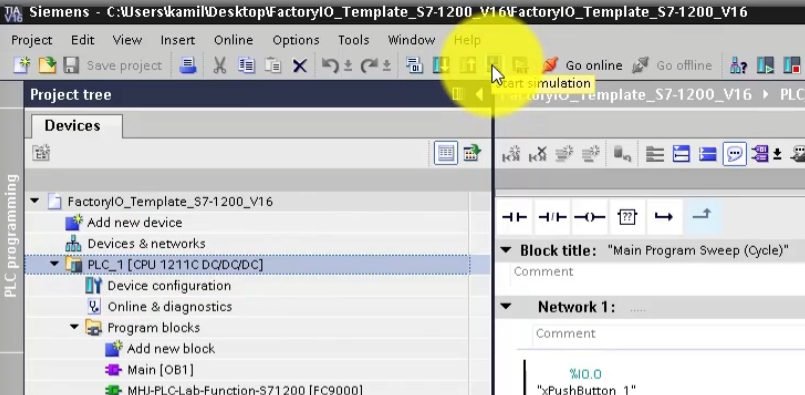
- Select the device and click Start Simulation.
- Choose PN/IE (1) as the type of PG/PC Interface.
- In the PG/PC Interface field, select PLCSIM S7-1200/S7-1500 (2).
- Click Start search (3), and after scanning is complete, select the device (4).
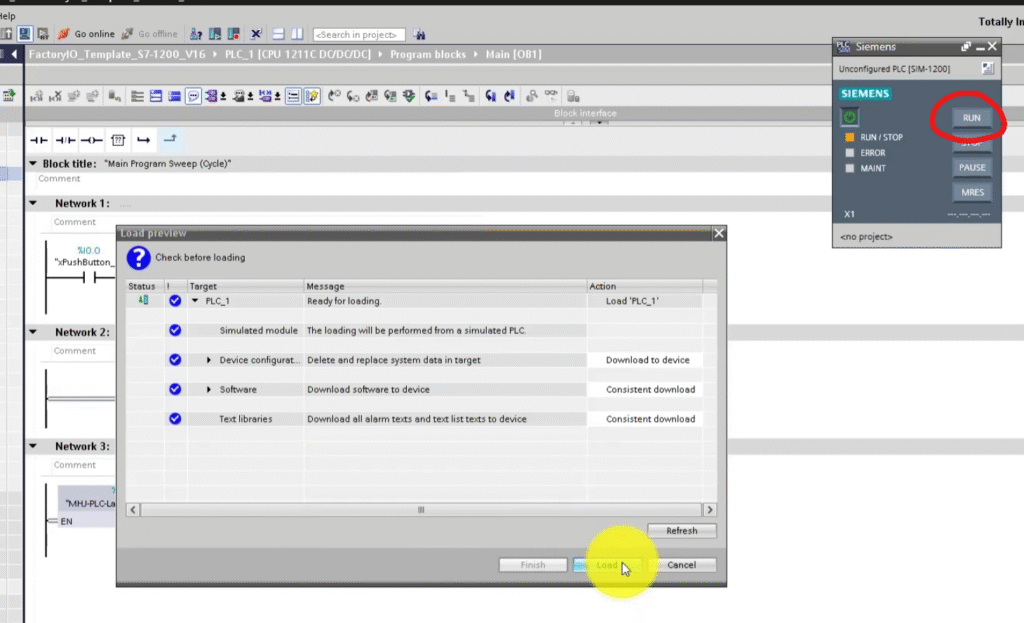
- Click Load (5) to load the program.
- In S7-PLCSIM, switch the CPU to RUN mode.
Connecting Factory IO to S7-PLCSIM
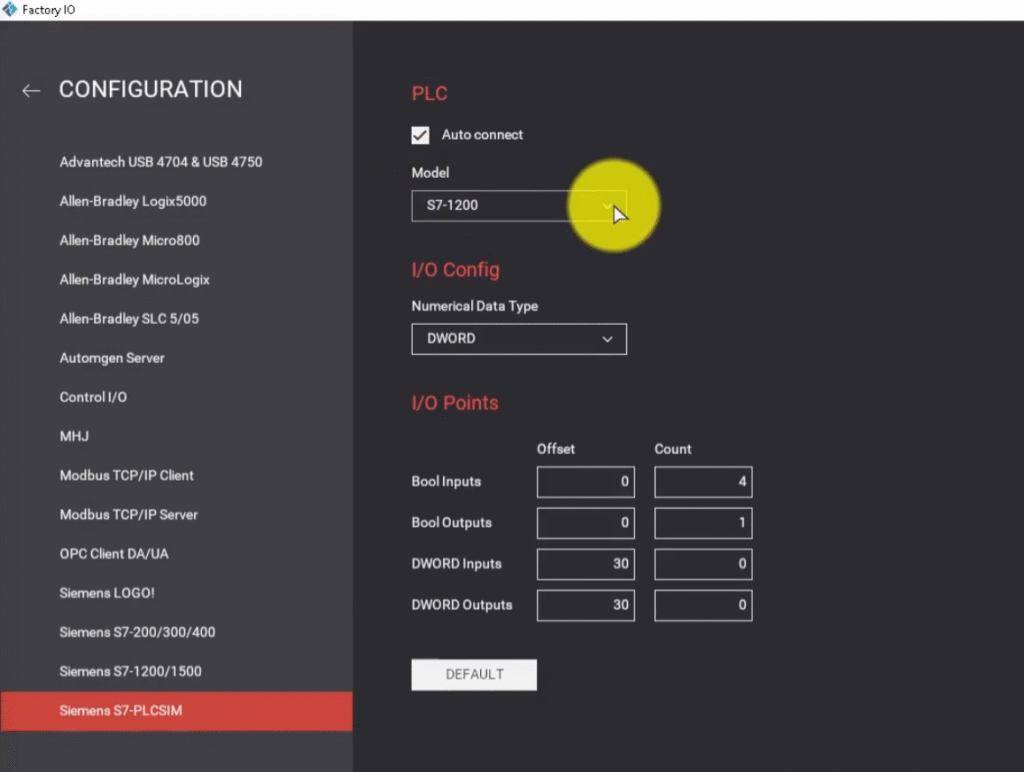
- In Factory I/O, go to FILE > Driver Configuration.
- Select Siemens S7-PLCSIM from the driver list.
- Click CONFIGURATION to open the configuration panel.
- Choose the appropriate CPU model (S7-1200 or S7-1500).
- Press Esc to return to the main driver window.
- Click CONNECT to establish the connection.
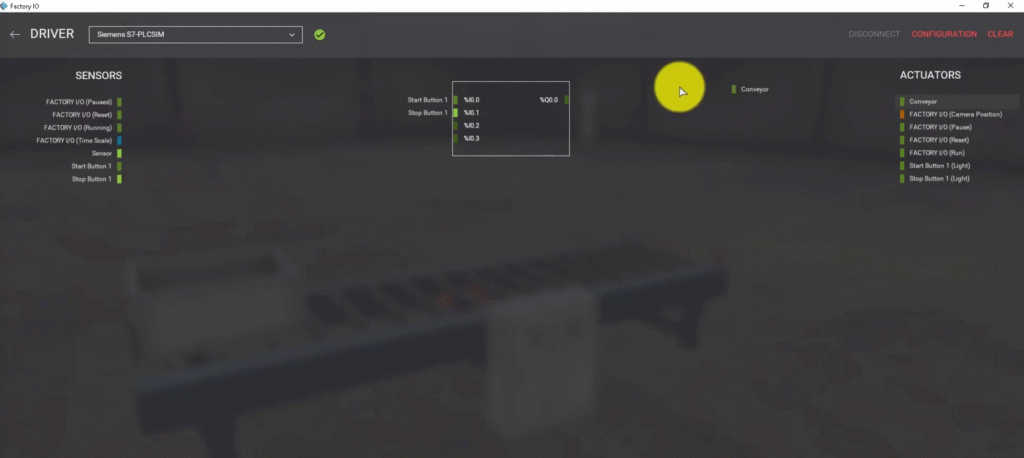
A successful connection is indicated by a green icon next to the selected driver and in the status bar.
Connecting Factory IO to Siemens S7-1200/1500 PLC
- In Factory I/O, go to FILE > Driver Configuration.
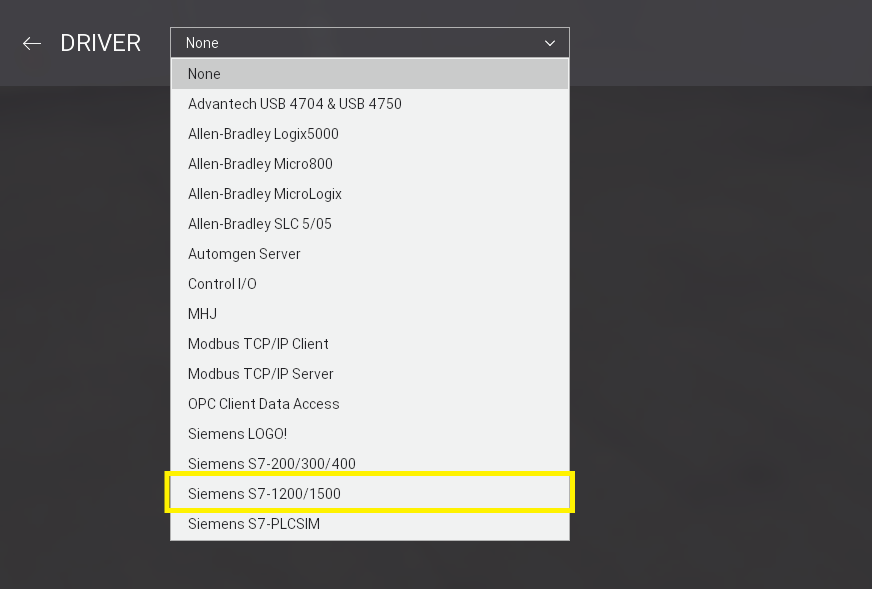
- Select Siemens S7-1200/1500 from the driver list.
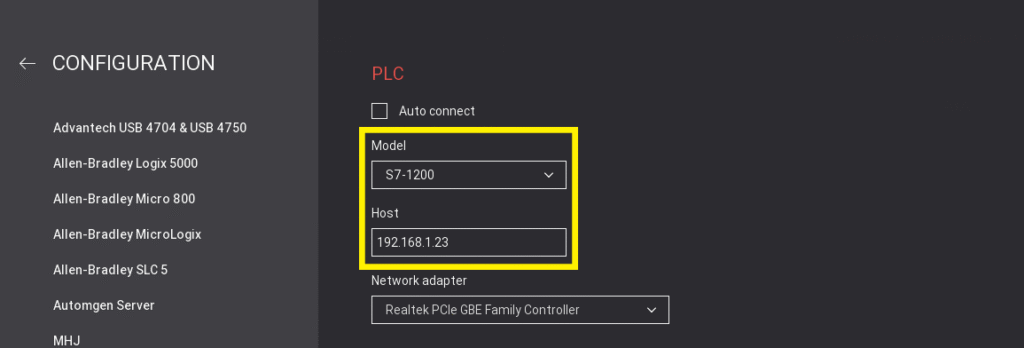
- Click CONFIGURATION to open the configuration panel.
- Choose the appropriate CPU model (S7-1200 or S7-1500).
- Enter the IP address of the controller, which you set during configuration in TIA Portal.
- Press Esc to return to the main driver window.
- Click CONNECT to establish the connection.
Your First Test: a Simple Conveyor Scene
When the green icon appears, check the connection with a basic scene before you write a bigger program. Open the From A to B scene in Factory IO (a single conveyor with a sensor) and use the drag-and-drop list in the driver window to map each sensor to an input and each actuator to an output of the template project. Then create a simple logic network in OB1, below Network 1:
- a normally open contact for the Start button and a normally closed (NC) contact for the Stop button,
- a seal-in branch that keeps the motor running,
- a coil that drives the conveyor output.
Download the program, switch the CPU to RUN and press Start in the scene. If the conveyor moves and the box stops at the sensor when you add that condition, your input and output mapping is correct and you can move on to more advanced scenes such as sorting or a pick and place station.
Which TIA Portal Versions Work with Factory IO?
The V15 templates are used for TIA Portal V15.1 and every newer version up to V20 - when you open the template in a newer version (for example TIA Portal V16 or V19), TIA Portal upgrades the project automatically. Keep in mind that a project saved in a newer version cannot be opened in an older one. If you also have PLCSIM Advanced installed, use the driver that matches the simulator you actually run.
Troubleshooting the Factory IO - PLCSIM Connection
If the driver does not connect, check these points first:
- S7-PLCSIM is running and the CPU is in RUN mode, not STOP.
- The program was downloaded after the last change in TIA Portal.
- Network 1 in OB1 from the template was not deleted or changed.
- For a real S7-1200/1500 PLC: the PC and the controller are in the same IP subnet, the IP address in Factory IO matches the CPU, and access with PUT/GET communication is permitted in the CPU protection settings.
Once the setup works, you can practice PLC programming on realistic machines and later move the same logic to real hardware. Factory IO scenes are also a great way to practice for the TIA Portal LAD/FBD course, and you can read more about the software itself in Factory I/O - a virtual factory for learning PLC programming.
Summary
By using templates compatible with TIA Portal V15 - V20, you can quickly set up an environment for learning PLC programming with Factory I/O and S7-PLCSIM. This connection allows you to test your own programs in a realistic virtual factory - without risking damage to real equipment and entirely within a simulation environment.
If you want to start learning PLC programming in virtual factory - check out our Premium Siemens PLC Programming Training in LAD and FBD.
FAQ
Start the simulation in TIA Portal, switch the CPU to RUN, then in Factory I/O select Siemens S7-PLCSIM, choose the CPU model, and click Connect. A green icon confirms the connection.
Check that:
CPU is in RUN mode
PN/IE interface is selected
Network 1 in OB1 is intact
Firewall isn’t blocking
TIA version matches the template
Factory I/O supports TIA Portal V15 to V20 with the correct templates.