Hello and welcome back to another guide from ControlByte, a platform for learning industrial automation and PLC programming. In this article, you’ll learn how to set a static IP address for PLC programming on your PC to ensure seamless communication with other devices on a local Ethernet network.
Why Set a Static IP Address for PLC Programming?
When programming PLCs, it’s necessary to configure your computer’s IP address for downloading and testing applications.
Networking Basics: What is an IP Address?
Any device using TCP/IP to communicate over an Ethernet network must have an IP address. This address serves as a unique identifier, enabling devices to communicate effectively.
Difference between Static and Dynamic IP Addresses
Static IP addresses are fixed and remain constant over time, making them ideal for devices that require consistent access, like servers. In contrast, dynamic IP addresses are temporarily assigned by a DHCP server and can change periodically, which is suitable for devices like laptops and smartphones. While static IPs simplify remote access and troubleshooting, dynamic IPs offer flexibility and efficient management of IP addresses. Understanding these differences is crucial for effective network configuration.
IP Address and Subnet Mask
An IPv4 address is a unique number made of four octets, each between 0 and 255, separated by periods - for example, 192.168.1.17. The IP address consists of a subnet address and a node address. With the commonly used subnet mask 255.255.255.0, the first three octets form the subnet address.

Structure of an IP Address
Two devices can communicate directly if they’re on the same subnet, or through a router if on different subnets. To keep networking simple, it’s typical to configure both your computer and the device you want to connect to on the same subnet.

How to Configure a Static IP Address
We need to use a static IP address to ensure reliable communication between devices on a local network. Setting a static address allows our computer to maintain the same network identifier, which is crucial for tasks like programming PLCs. To set up a static IP address on your computer, follow these steps:
1. Access Network & Internet Settings
Right-click the WiFi icon, select “Network & Internet settings,” then go to Change adapter options.

2. Open Advanced Network settings
In the Advanced Network settings window, locate your Ethernet adapter. This adapter connects your computer to the Ethernet network.

3. Configure the Ethernet Adapter
Click the adapter, choose More adapter options select Edit

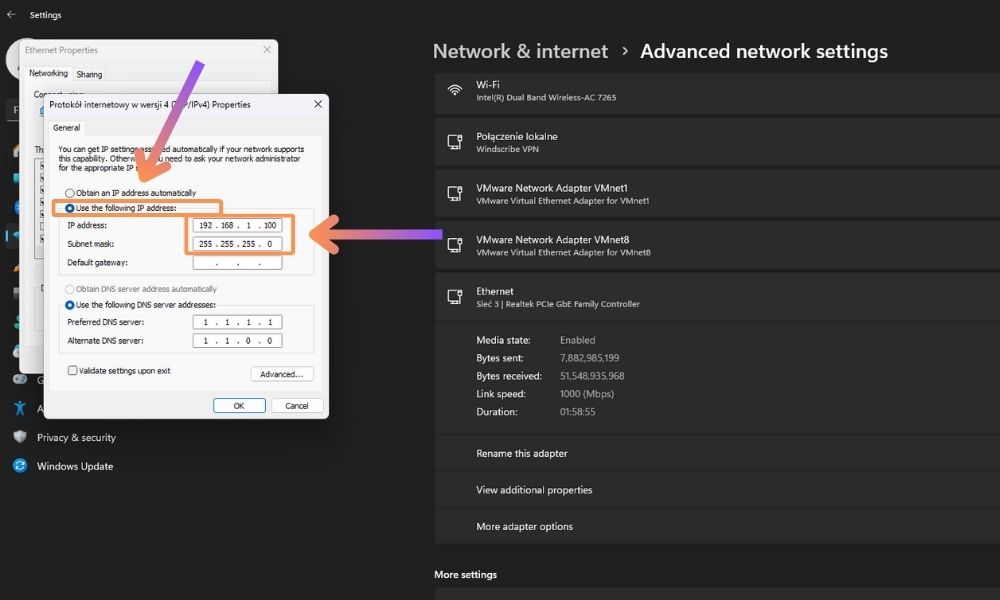
Select Internet Protocol Version 4 (TCP/IPv4), and open Properties.

If you don't have these options available, take a look at the picture below.

4. Set the IP Address
Select Use the following IP address, then enter an IP address matching the target device’s subnet (e.g., 192.168.1.100) and subnet mask (255.255.255.0). (Remember that the address must be unique on the network; otherwise, you may encounter an IP address conflict.) For a direct cable connection to a PLC you can leave the default gateway and DNS server fields empty.
Save Your Configuration
Click “OK” to save your new static IP address configuration.
You have just changed your current IP address. Congratulations!
Testing the Connection
To verify the connection between your computer and the target device, open Command Prompt, type ping 192.168.1.17 (using the device’s IP), and press Enter. If you receive a reply, the connection is successful. If not, recheck the IP settings on both devices and the physical connections.


Troubleshooting Connection Issues
If your connection test fails, ensure that:
- The IP addresses for both the device and your computer are correctly set.
- The Ethernet cable is securely connected and functional.
- The Windows firewall is not blocking ping (ICMP) on this network. Some PLCs also do not answer ping when this function is disabled in their configuration.
- No other network adapter (Wi-Fi, a VPN client or a virtual adapter) uses the same subnet as your Ethernet port.
- Your PC does not show an address starting with 169.254. That means Windows did not get an address from a DHCP server and the static settings were not saved.
Examples with WAGO and Siemens Simatic S7-1200
If you have successfully established the connections as shown in the image, with your PC having the IP address 192.168.1.100 and the controller set to 192.168.1.17, you are now ready to start programming. If both controllers (WAGO and Siemens) are connected to the same network at the same time, each of them needs its own address, for example 192.168.1.17 and 192.168.1.18. You can use CODESYS for the WAGO controller and TIA Portal for the Siemens controller. Ensure all devices are on the same subnet, and you're good to go!

Static vs Dynamic IP Address: Which One Should You Use?
There are two types of IP addresses from the point of view of configuration. A dynamic IP address is assigned automatically by a DHCP server (Dynamic Host Configuration Protocol), usually running on your router. The device asks for an address when it connects, so the address can change after a restart or when the lease expires. A static IP address is entered manually and the address does not change until you change it yourself.
| Static IP address | Dynamic IP address | |
|---|---|---|
| How it is assigned | Entered manually on the device | Assigned automatically via DHCP |
| Does it change? | No, the address stays the same | It can change after a restart or lease expiry |
| Typical use | PLCs, HMIs, drives, remote I/O, servers, printers | Laptops, phones and office PCs on the home network or office network |
| Setup effort | You must plan addresses and avoid conflicts | No setup, the router manages the available IP pool |
In industrial automation, almost every device on the machine network uses a static IP address. The PLC program, the HMI and the SCADA system connect to a specific IP, so a changing IP address would break the communication. Your engineering laptop is the exception: in the office it gets its address via DHCP, and on the machine you switch it to a static address in the PLC subnet.
Private IP addresses for machine networks
Machine networks use private IP address ranges that are not routed on the internet: 10.0.0.0 to 10.255.255.255, 172.16.0.0 to 172.31.255.255 and 192.168.0.0 to 192.168.255.255. Default addresses of controllers are usually from the 192.168 range. For example, a new CPU in TIA Portal gets 192.168.0.1 by default, and many WAGO controllers ship with 192.168.1.17. That is why you often need to change your IP address on the laptop when you move from one machine to another.
Static IP at the router level (DHCP reservation)
If a device must keep the same address but you prefer to manage everything in one place, you can create a DHCP reservation on the router. The router identifies the device by its MAC address and always gives it the same IP. To do this, you need the MAC address of the device, which is printed on most PLCs and network modules or visible in the router's list of connected clients.
Setting a static IP from the command line
When you switch between networks often, the Windows command line is faster than clicking through the settings. Run the Command Prompt as administrator and replace "Ethernet" with the name of your adapter:
netsh interface ip set address name="Ethernet" static 192.168.1.100 255.255.255.0

netsh interface ip set address name="Ethernet" source=dhcp
The first command sets a static IP address and subnet mask, the second one returns the adapter to obtain an IP address automatically. You can save both lines as small batch files on your desktop.
Conclusion: Setting Up a Static IP for Effective Device Communication
In this article, you’ve learned the basics of IP addresses and how to configure a static IP on your PC for PLC programming. With this setup, you’ll be able to connect directly with other devices in your network, essential for downloading and testing PLC applications.
Ready to level up your automation skills? Dive into our PLC programming courses and take the next step in your industrial technology journey!
Thank you for reading! If you're interested in learning more, explore our courses for in-depth training: Control Byte Courses.
Static IP Address - FAQ
What is a static IP address used for?
A static IP address is used for every device that other devices must always find at the same address: PLCs, HMI panels, drives, remote I/O, servers, network printers and cameras. In PLC programming it lets TIA Portal, CODESYS or another tool connect to the controller without searching for it each time.
Should I set a static IP address on my PC?
Only on the Ethernet adapter you use to connect to machines, and only for that network. Leave Wi-Fi and your office or home network on automatic (DHCP), so you do not lose your internet connection. When you get back to the office, switch the Ethernet adapter back to obtain an IP address automatically.
Is a static IP from my internet service provider the same thing?
No. An internet service provider can sell you a static public IP address, also called a dedicated IP address. It is used to host a web server, a VPN server for remote access to machines or VoIP systems on the internet. The static IP you set for PLC programming is a private, local address that only works inside your network and costs nothing.
Why is my static IP address not working?
The most common reasons are a different subnet on the PC and the PLC, a mistake in the subnet mask, an IP address conflict with another device, a firewall blocking the connection or the wrong network adapter. Check the list in the troubleshooting section above. If you want to understand industrial networks in more depth, see our Modbus, PROFINET and OPC UA communication training or start with the basics of the Siemens S7-1200 PLC.