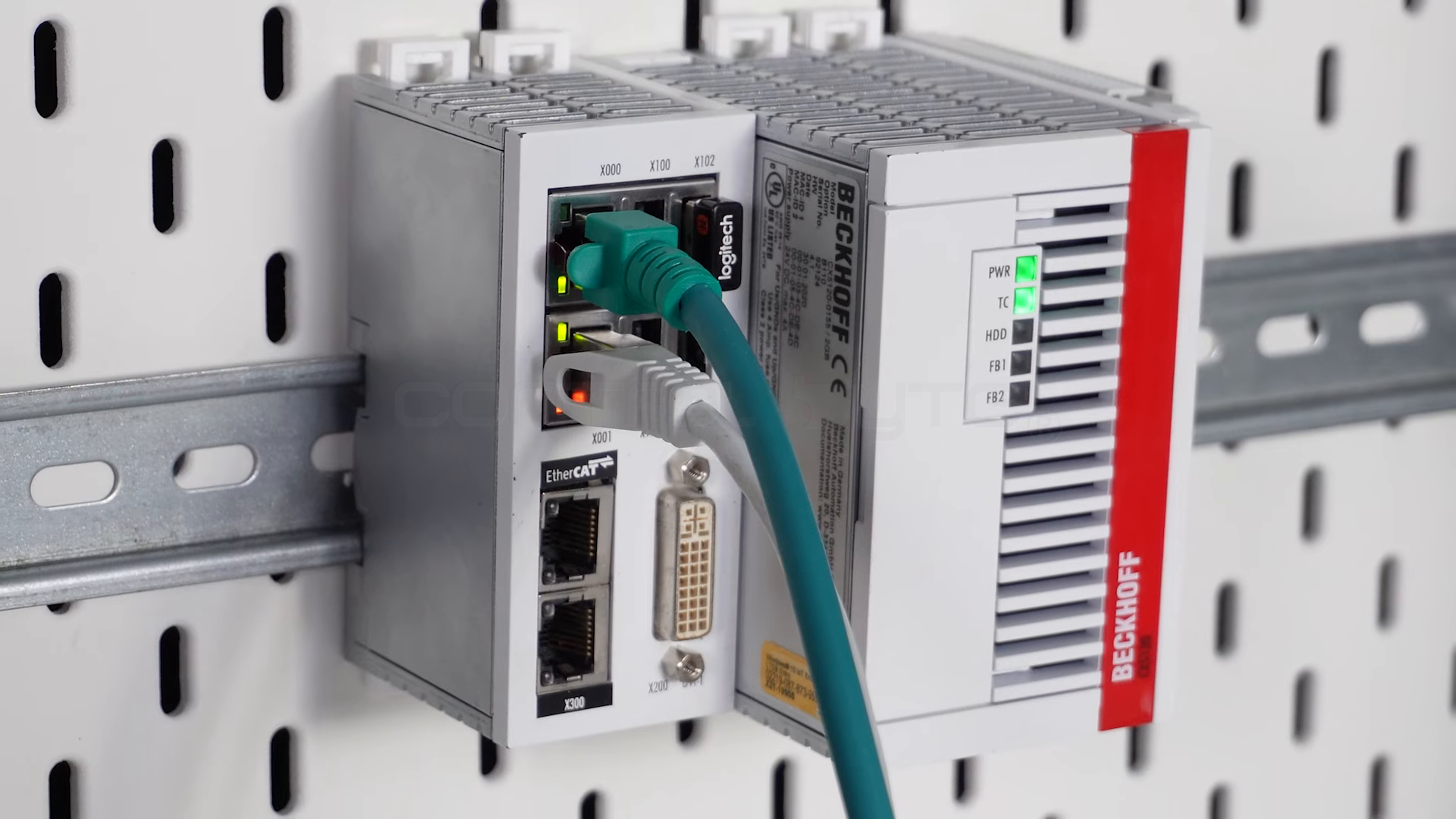
Beckhoff PLC programming starts in one environment: TwinCAT 3. This is where you create the project, configure the hardware, write the program and start the controller. In this Quick Start Guide we cover the basics from scratch: what TwinCAT is, which IDE and which Visual Studio versions it runs on, how the new TwinCAT Package Manager works, how to create a new project, add a sample drive over EtherCAT and start the program.
Below you will find screenshots from every key step in TwinCAT, so you can follow the whole configuration from start to finish.
What is TwinCAT 3 and the Beckhoff ecosystem
TwinCAT 3 (The Windows Control and Automation Technology) is an integrated environment from Beckhoff in which you program PLCs, configure industrial networks and run control logic. Beckhoff relies on PC-based control architecture, so a Beckhoff PLC is most often an Embedded PC from the CX series or an industrial PC (IPC), and the logic itself runs as real-time software on Windows.
The TwinCAT ecosystem is split into two layers:
- TwinCAT XAE (eXtended Automation Engineering): the engineering part, that is the IDE where you write the project, the program and the configuration.
- TwinCAT XAR (eXtended Automation Runtime): the runtime on the controller that executes the program in real time.
This split means that you install XAE on your engineering computer, and you deploy the finished project to the target Beckhoff PLC running XAR.
Beckhoff controllers: the CX Embedded PC family
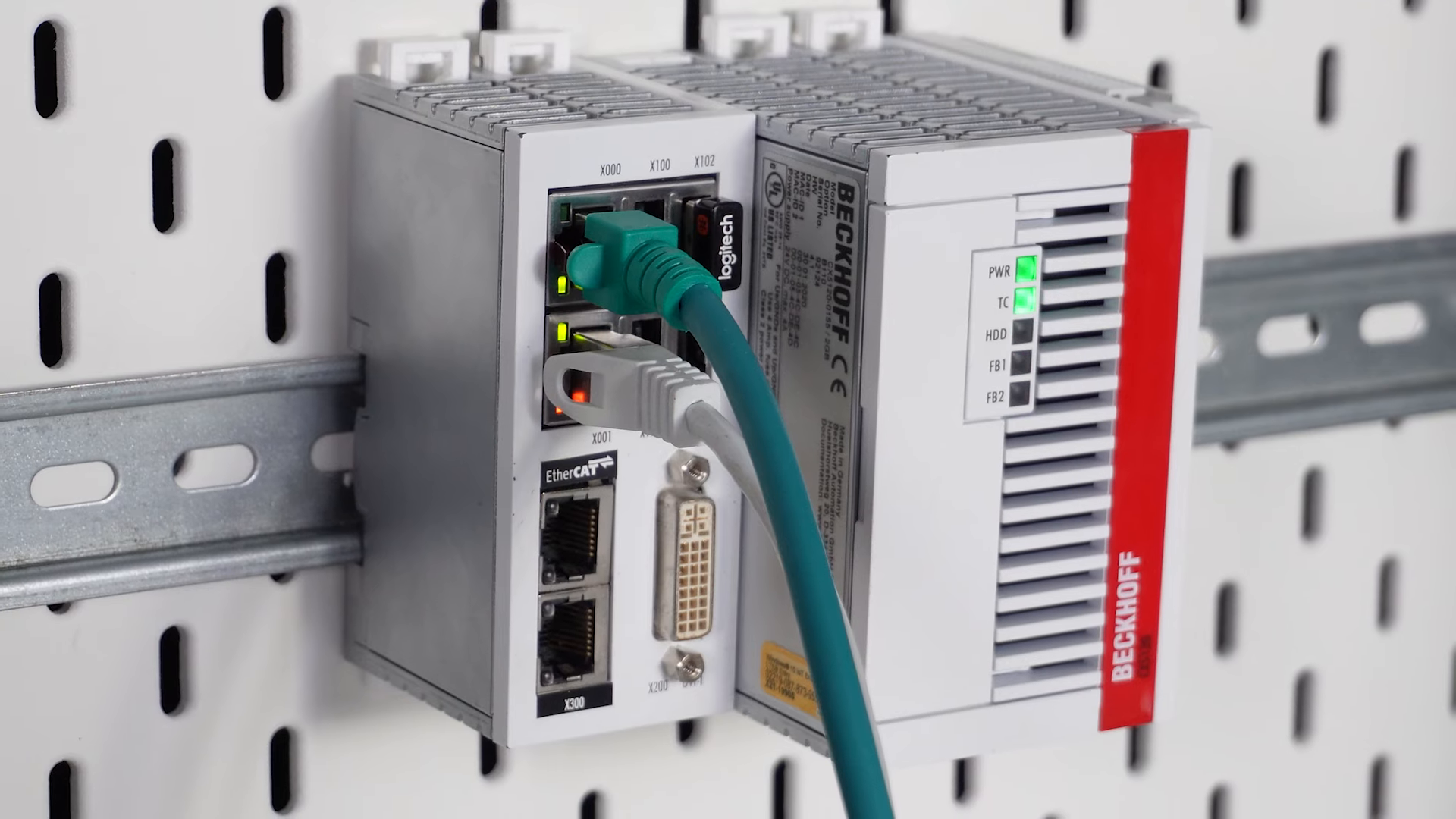
A Beckhoff PLC is most often an Embedded PC from the CX series, DIN-rail mounted and running the TwinCAT runtime. The series is highly scalable, from small controllers to powerful units with Intel processors, so you can move the same program to hardware matched to the size of your application:
- CX7000: an entry-level mini controller with an Arm Cortex-M7 480 MHz processor and integrated I/O (8 multifunction inputs and 4 multifunction outputs); it uses TwinCAT/RTOS based on FreeRTOS as firmware.
- CX8xxx (for example CX8190): small, compact controllers with Ethernet interfaces and fieldbuses.
- CX9020: a compact Embedded PC with an Arm Cortex-A8 1 GHz processor, DIN-rail mounted.
- CX5100 / CX5200: fanless units with Intel Atom processors, with a modular design in the CX5200 series.
- CX20xx: the most powerful Embedded PCs with Intel Core processors for the most demanding applications.
Regardless of the model, you program them in the same TwinCAT environment, and you add I/O over the EtherCAT bus (E-bus) or Bus Terminals (K-bus). That is why the Beckhoff PLC programming basics you learn once work across the whole CX series.
TwinCAT Package Manager: the new way to install
With the TwinCAT 3.1 build 4026 line, Beckhoff introduced the TwinCAT Package Manager (TcPkg). It is a package manager that works similarly to tools known from other ecosystems (apt, winget, NuGet): instead of one large installer, you download and install only the TwinCAT components you actually need.
What it changes in practice:
- Modular installation: you pick specific packages (XAE, XAR, libraries, technology functions) instead of a monolithic setup.
- Updates and versioning: you update packages individually, while the environment keeps track of dependencies between them.
- GUI and command line: the Package Manager has a graphical interface and the
tcpkgcommand, which lets you automate installation across many machines. - Custom and offline feeds: for production maintenance you can use a local package source, independent of the internet.
The older, stable TwinCAT 3.1 build 4024 line still uses the classic, monolithic installer. If you are just starting with Beckhoff PLC programming, check which line (4024 or 4026) your hardware supports and which one your team uses. You can find the full specification of both lines in the official Beckhoff TwinCAT 3 Build 4026 documentation.
TwinCAT runtime versioning: match the build to your controller
Beckhoff develops TwinCAT in successive builds (for example 3.1.4024.x and 3.1.4026.x), and every PLC has a specific runtime version installed, namely TwinCAT XAR. Hence a simple but crucial rule: you build the project for a specific TwinCAT build and you must have that same build active in the engineering environment (XAE). Otherwise the project may be upgraded to a newer version or it will not deploy to the target controller.
- The project stores its own TwinCAT version: the build it was last edited with is saved in the project file. With the Pin Version option (the General tab of the TwinCAT project node) you pin the project to exactly that version so you do not upgrade it by accident.
- The selected build must be installed: to open the project in a given version, that build must be present on your computer. In the 4024 line you install it with the classic setup, in 4026 you add the matching package through the TwinCAT Package Manager.
- The Remote Manager keeps multiple versions side by side: TwinCAT XAE lets you have several builds at once and automatically loads the right one when you open a pinned project. If the pinned version is missing, it offers to open the project with the latest of the same release.
- Compatibility with the controller runtime: match the XAE build to the XAR version on the controller (or update the runtime). A project built with a much newer build may not be accepted by an older runtime on the target PLC.
In practice, before you start Beckhoff PLC programming, check the runtime version on the controller and set up and install the matching TwinCAT build in the environment. It saves hours of figuring out why a project will not deploy.
Which IDE does the Beckhoff environment run on? Visual Studio versions
The most important thing that surprises beginners: TwinCAT XAE is not a separate editor, but an extension that integrates into Microsoft Visual Studio. Beckhoff uses the Visual Studio engine as the IDE base, which is why the environment looks familiar to anyone who has worked with Microsoft products.
You have two ways to run the Beckhoff engineering environment:
- Full Visual Studio: if you have Visual Studio installed, TwinCAT XAE is added to it as an extension. Build 4024 integrates with full Visual Studio versions from 2013 to 2019 (Visual Studio 2019 support from build 4024.10), and the newer 4026 line adds Visual Studio 2022 alongside the 2017 and 2019 versions.
- TwinCAT XAE Shell: if you do not have Visual Studio, Beckhoff provides a free, slimmed-down shell based on Visual Studio (TcXaeShell). In the 4024 line it is based on Visual Studio 2017, and in 4026 a 64-bit variant based on Visual Studio 2022 is available (TcXaeShell64). It contains everything you need for PLC programming, without a Microsoft license.
In build 4026 you can also change the integration with a specific Visual Studio or XAE Shell version later, without reinstalling TwinCAT. The compatibility matrix is updated over time, so before installing it is worth checking the official Beckhoff documentation and matching the IDE version to your TwinCAT line.
TwinCAT 3 system requirements
Before you install the environment, check the requirements. Beckhoff splits them into the engineering part (XAE), which you put on the programmer's computer, and the runtime (XAR), which runs on the target controller.
XAE (engineering environment):
- Operating system: Windows 10 or Windows 11 (TcXaeShell64 requires at least Windows 10 20H2).
- Processor: 1.8 GHz or faster, dual-core or better recommended.
- RAM: at least 4 GB, and 16 GB recommended for the 64-bit TcXaeShell64.
- Disk: about 10 GB of free space if you do not have Visual Studio installed yet.
- Screen resolution: at least 720p (1280 x 720).
XAR (runtime on the controller):
- Operating system: Windows 10 (including LTSB/LTSC) or Windows 11. Windows 11 is supported from build 4024.68 and 4026.16.
- Disk: at least 2 GB; the amount of RAM depends on the activated configuration.
The differences between the lines also show up in the supported runtime platforms. Build 4024 and earlier support, among others, Windows Embedded Standard 7 (WES7) and Windows Embedded Compact 7 (WEC7). Build 4026 adds support for TwinCAT/BSD and Beckhoff RT Linux, as well as XarMode for environments without hard real time (for example Hyper-V).
How to download TwinCAT 3 and is it free
Good news for learners: the core of TwinCAT 3 Engineering, that is PLC programming, is free in terms of licensing and you can install it on any number of computers. You download the installation files from the official Beckhoff website (the download finder), usually after creating an account.
- Download TwinCAT 3 (XAE and XAR) from the Beckhoff website; in the 4026 line you install the components through the TwinCAT Package Manager.
- Programming and local simulation are free; to run the runtime you generate a 7-day trial license in XAE, which you can renew any number of times.
- As a result, you can start Beckhoff PLC programming without buying hardware or licenses, on your computer alone.
TwinCAT 3 licensing
It is worth understanding the licensing model from the start so it does not surprise you during deployment, and the official Beckhoff TwinCAT 3 licensing overview lists the details. TwinCAT 3 is divided into a free engineering part and a paid runtime:
- Engineering (XAE): free, on any number of programming workstations.
- Runtime (XAR) and extended functions: TCxxxx/TFxxxx licenses and TExxxx tools are paid and required for production use.
- Trial license: 7 days, generated in XAE, renewable many times, ideal for learning and testing.
- Licensing methods: activation bound to a specific control computer, or a hardware key (dongle) as an EtherCAT terminal (for example EL6070) or a USB key (for example C9900-L100). The dongle is independent of a specific IPC, so you can easily move the license to another computer.
Programming languages for Beckhoff controllers
TwinCAT 3 fully supports the IEC 61131-3 standard, so you can program Beckhoff PLCs in the languages you know from other brands:
- ST (Structured Text), most often chosen for complex logic.
- LD (Ladder Diagram), the classic ladder.
- FBD (Function Block Diagram) and CFC for block logic.
- SFC (Sequential Function Chart) for state machines and sequences.
In addition, TwinCAT extends the standard with object-oriented programming (classes, methods, interfaces), and in the C++ variant and the MATLAB/Simulink integration it lets you write real-time modules outside the classic PLC. For a quick start, IEC 61131-3 is more than enough. TwinCAT shares the IEC 61131-3 model with environments such as CODESYS, so concepts like timers and counters carry over: see our guide to CODESYS timers.
Creating a new project in TwinCAT
We start the configuration in the TwinCAT environment with an empty project created. In the System Manager panel you immediately see the environment version and the target selection button (Choose Target).
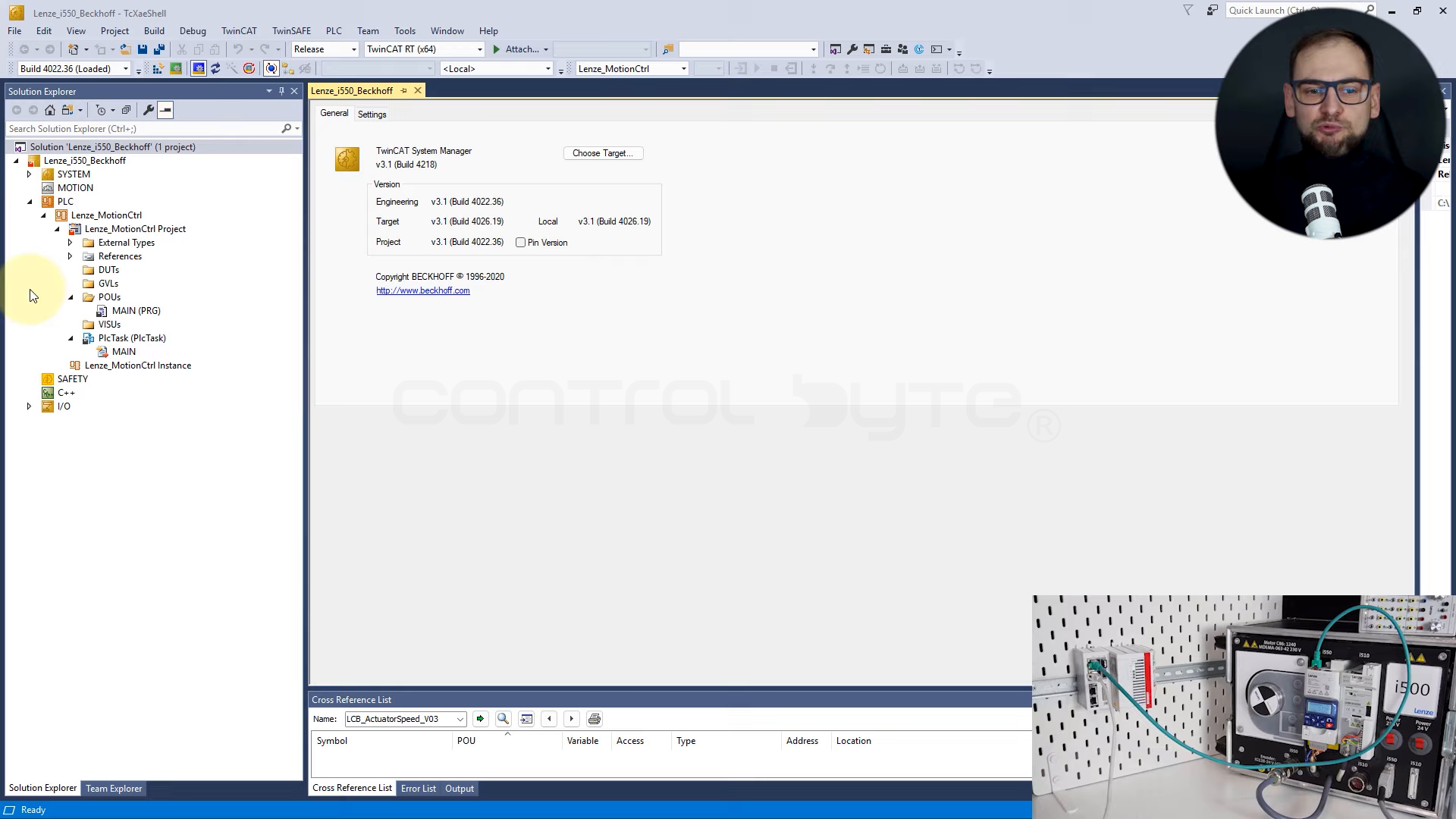
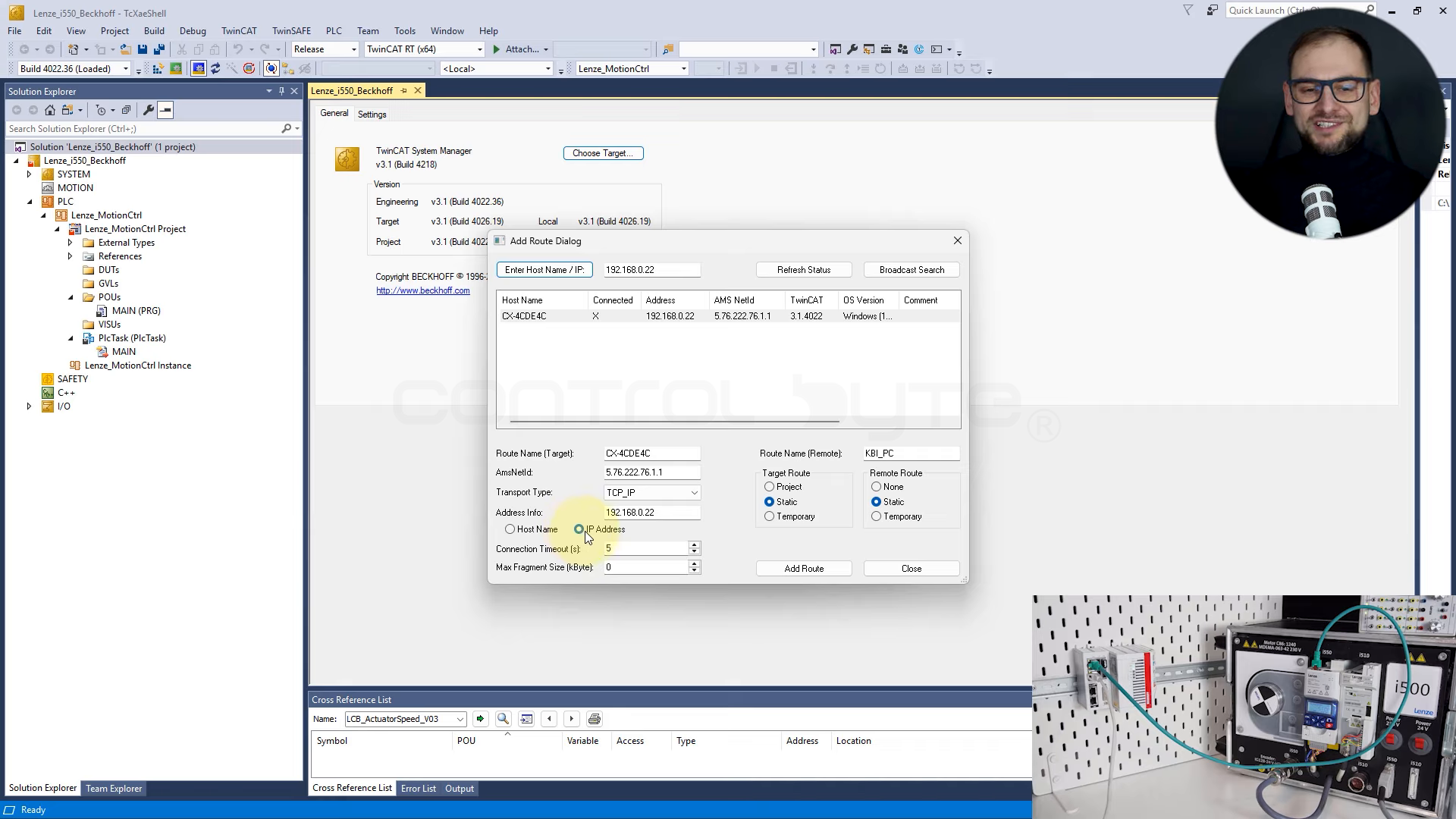
To program a Beckhoff PLC, you first have to connect to it. Step by step:
- Assign an IP address to the controller and make sure your network card is in the same subnet (in the video the controller has the address 192.168.0.22).
- In the target selection window click Enter Host Name and let TwinCAT detect the controller on the network.
- Add a route to the controller and provide the login credentials. The default user is
Administratorand the password is1. - Once confirmed, the route is active and TwinCAT shows the connection to the controller in Run mode.
Adding a sample drive over EtherCAT
Beckhoff controllers feel right at home on an EtherCAT network, so as a sample device we will add a drive (in this example it is a drive from the i550 family, but the procedure is the same for any EtherCAT device). EtherCAT is an open, real-time fieldbus standard maintained by the EtherCAT Technology Group.
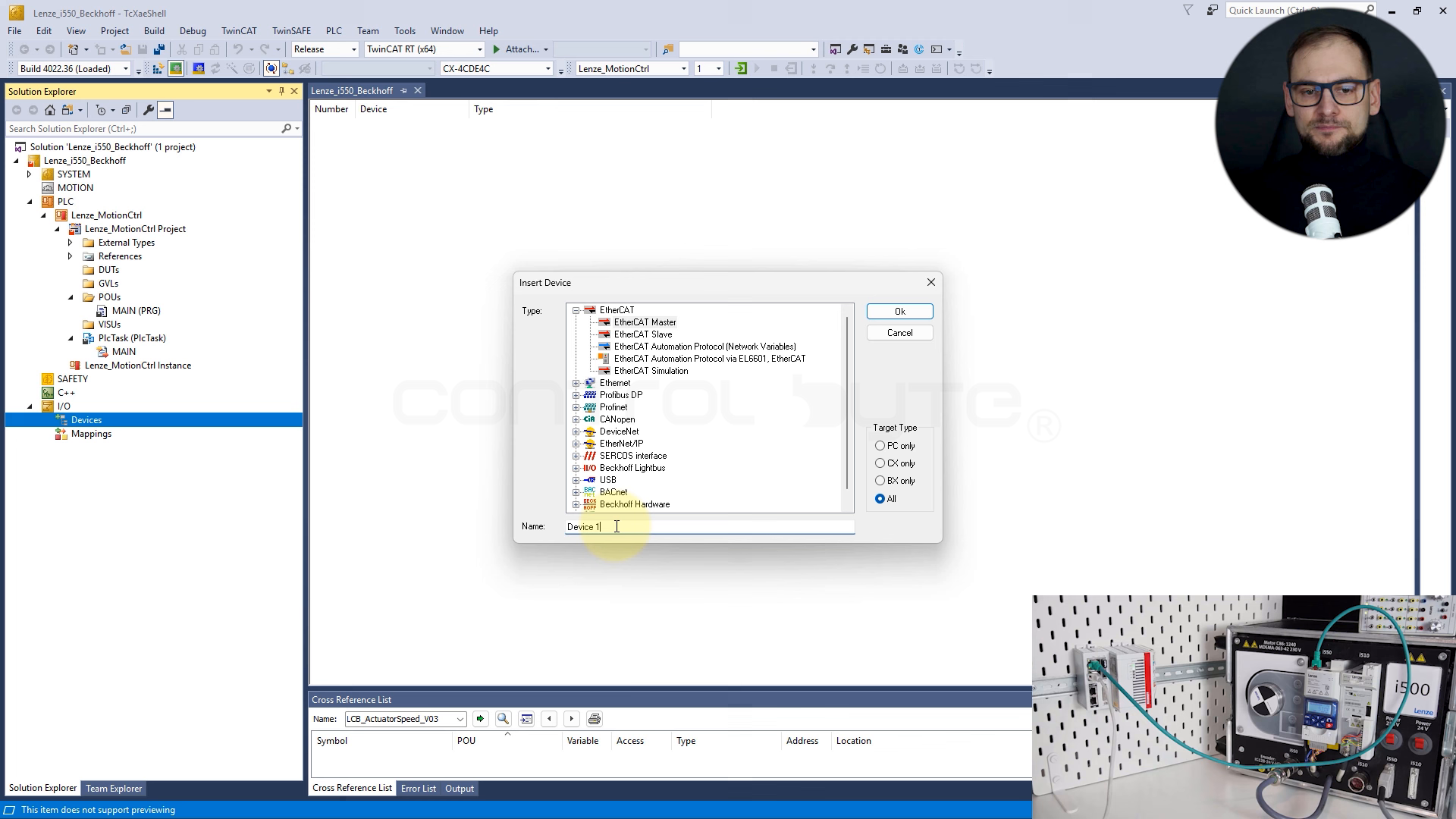
- In the Devices tab choose Add New Item and add an EtherCAT Master. You can rename it to something readable, for example Master EtherCAT 1.
- In the Adapter tab assign the network interface to which you physically connect the EtherCAT devices.
- Download the configuration to the controller and switch to Config Mode by clicking the purple gear icon.
- Right-click and choose Scan so that TwinCAT searches the network and detects the connected devices.
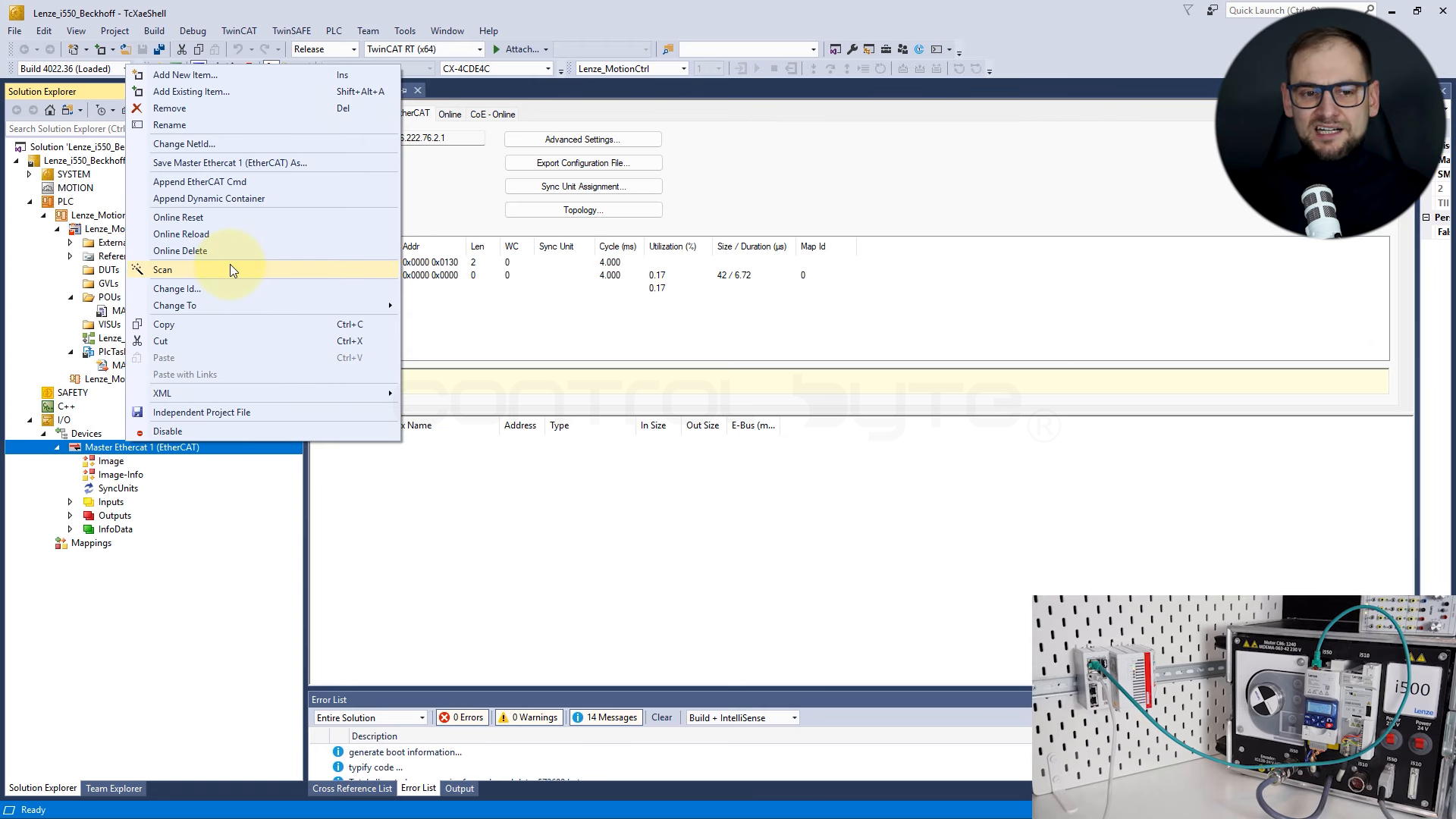
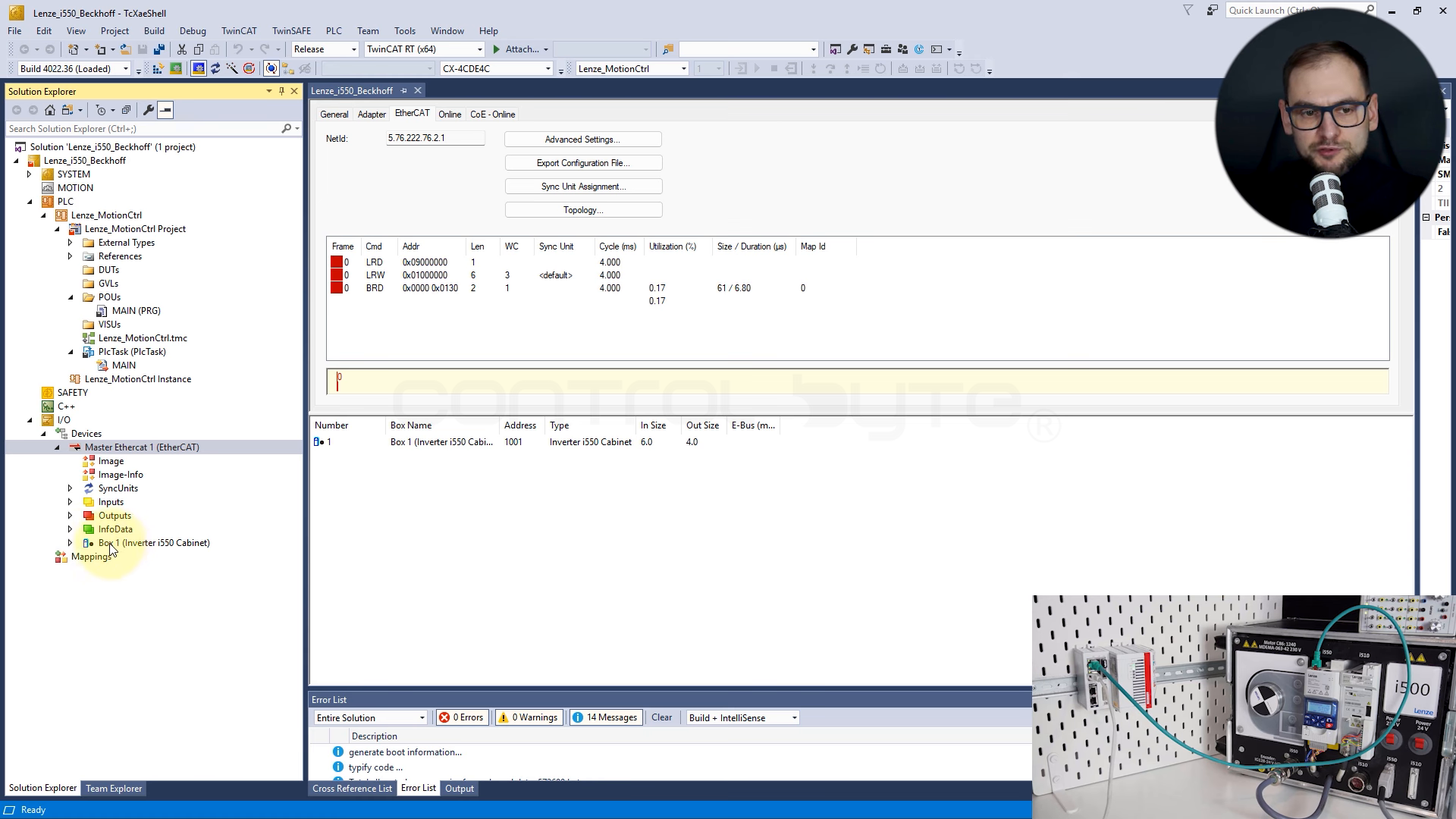
If the device is not recognized correctly, the library is missing the ESI (EtherCAT Slave Information) description file. You copy the ESI files into the TwinCAT installation directory, in the TwinCAT\3.1\Config\Io\EtherCAT location, and then refresh the library through EtherCAT Devices, Reload Device Descriptions. After a new scan, the device is recognized as a proper Box with a default process telegram.
First program and starting the controller
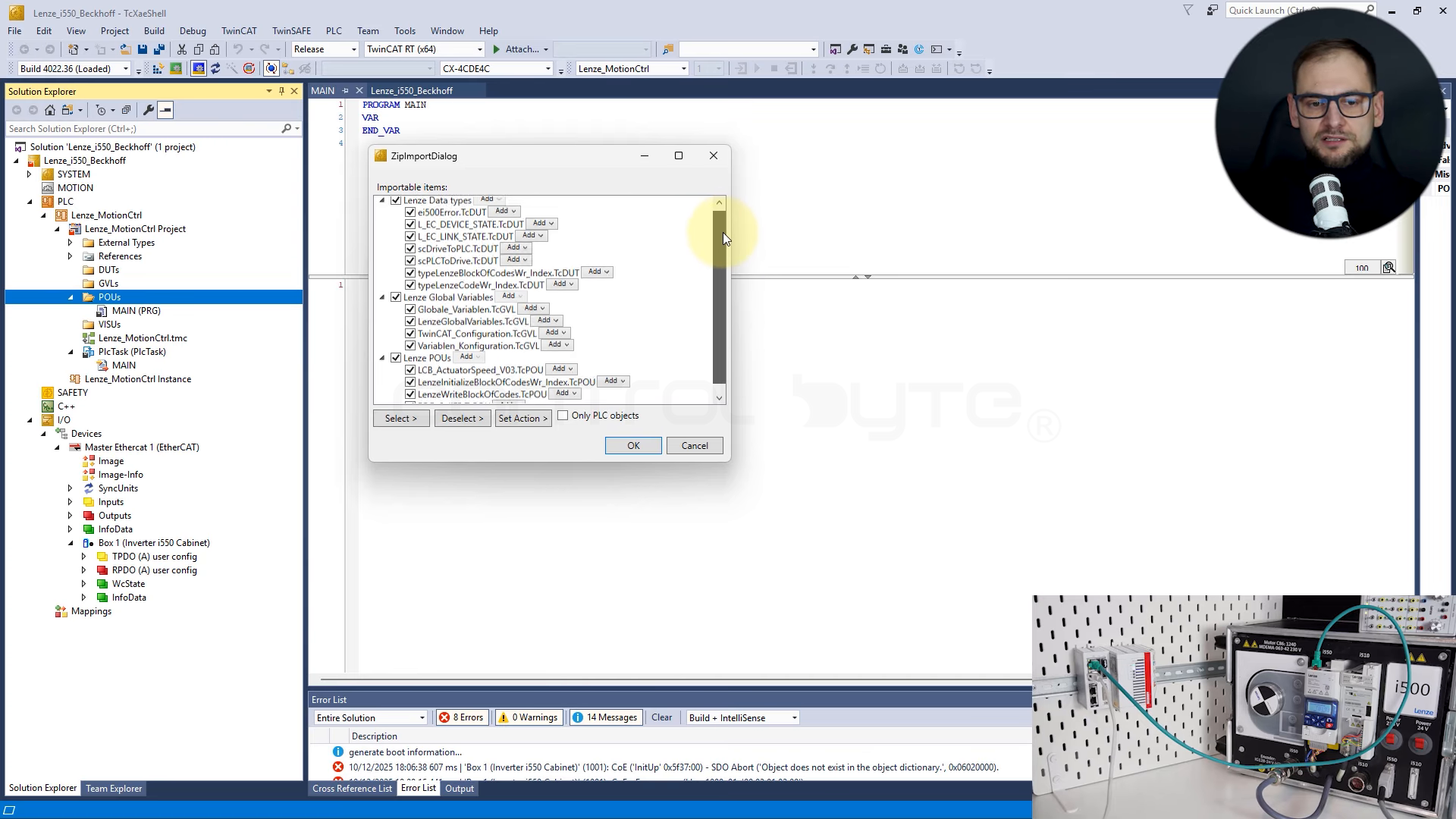
We have the hardware, now for the program. In the PLC project we import the libraries that handle the device (in the example, the drive vendor libraries) using the Import from ZIP option. After the import, data types, global variables and function blocks are added to the project.
Before the program compiles, add the required system libraries in the References tab (in the example Tc2_EtherCAT), then build the project with Build. Once the PLC structured variables are linked to the EtherCAT telegram, we can log in to the controller and view the program online.
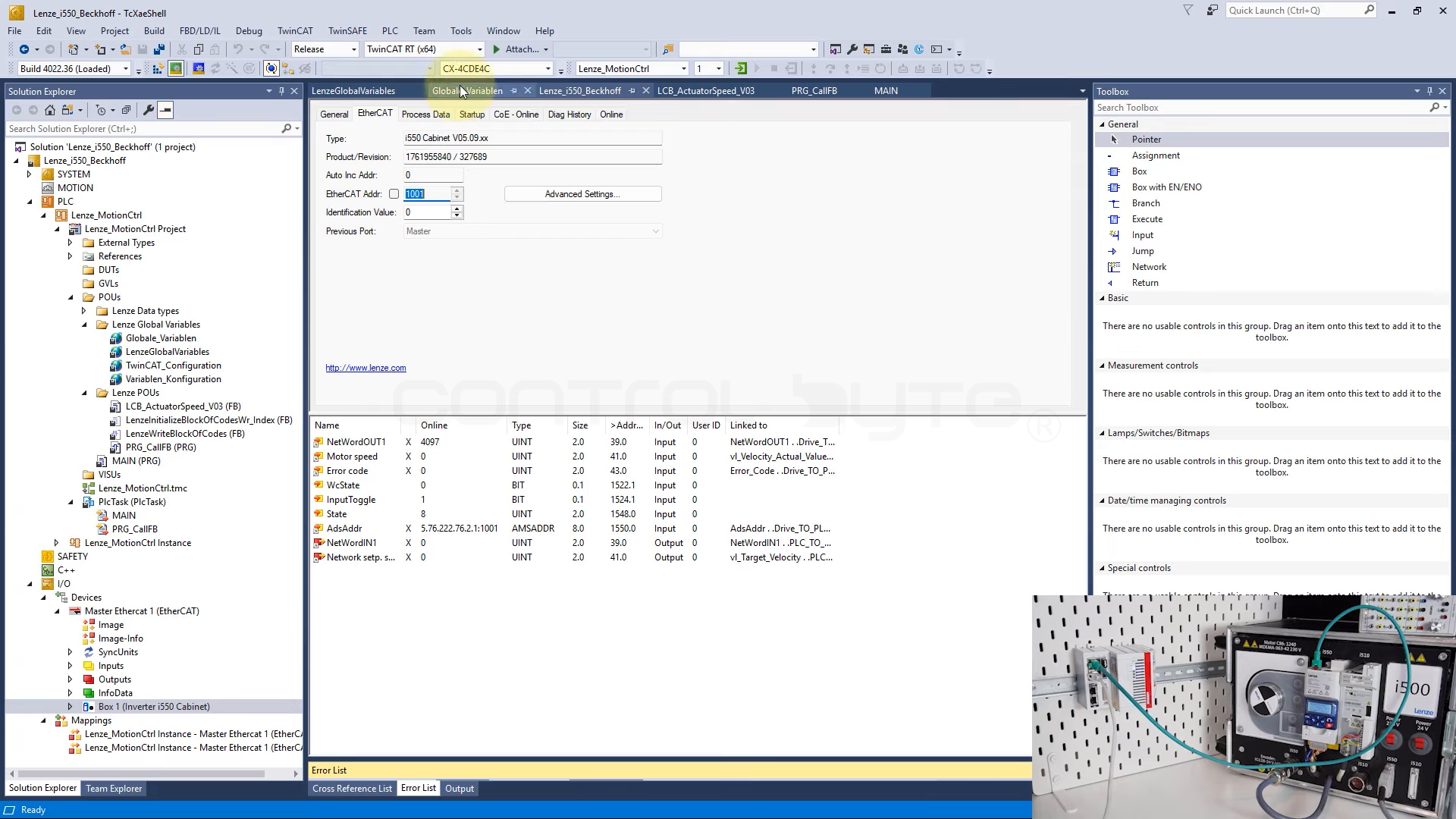
The program is downloaded but not running yet. Choose Start to run the controller in Run mode. After the start, drive handling statuses appear (Communication OK, Drive Ready), and from the function block you can set a speed and send a command to the device.
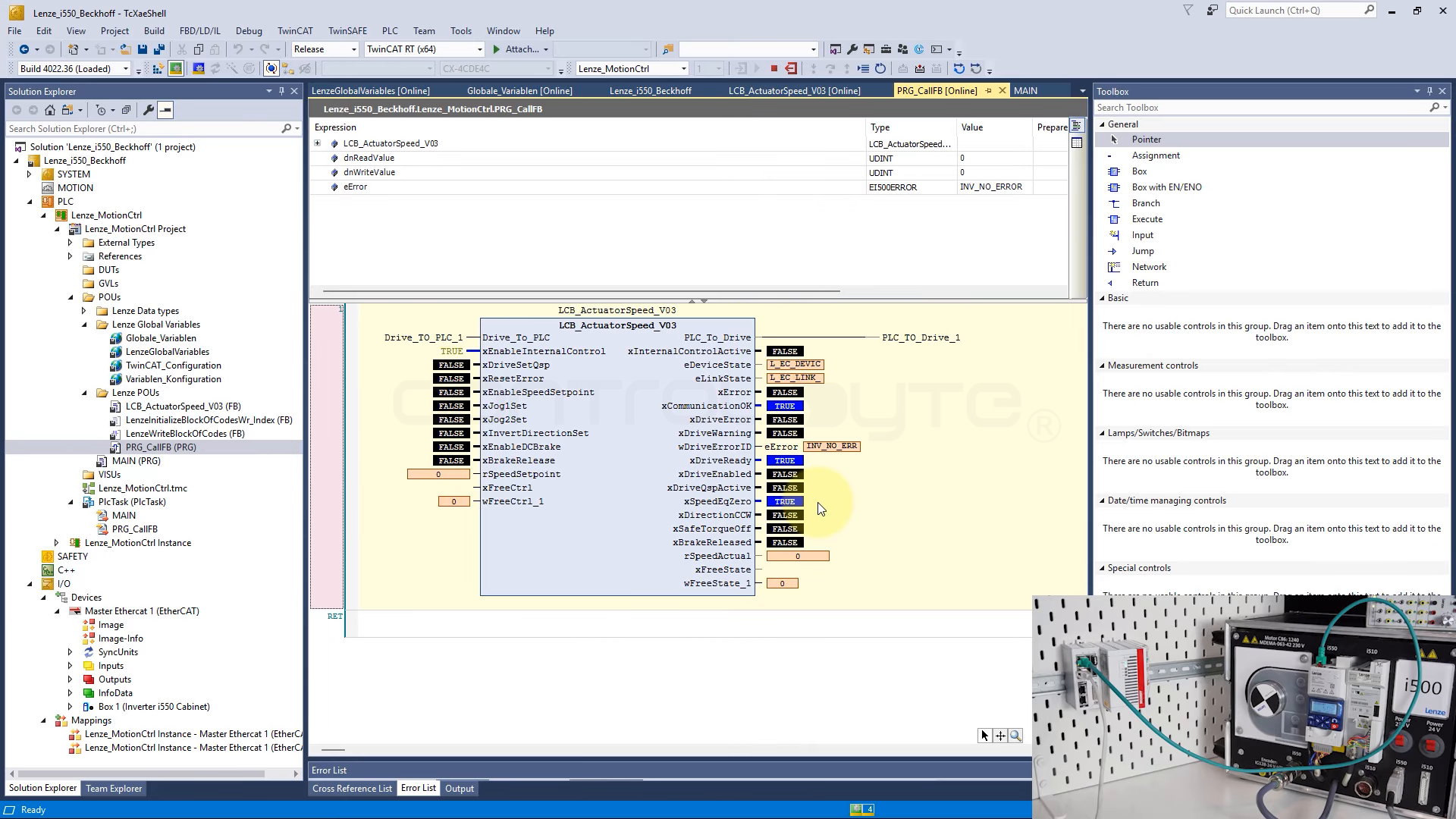
This is the full mini cycle of Beckhoff PLC programming: project, hardware, program, start. The rest, that is the application parameters and the technology logic, you build on top of this foundation.
Common problems at the start
- No connection to the controller: check that your computer's network card is in the same subnet as the controller and that the route is active.
- EtherCAT device not recognized after a scan: the ESI file is missing. Copy it into
TwinCAT\3.1\Config\Io\EtherCATand run Reload Device Descriptions. - Library compilation errors: add the missing library in References (for example
Tc2_EtherCAT) and rebuild the project. - The drive reports an error despite the configuration: most often there is no cyclic data exchange. Check the mapping of the process variables to the telegram and reload the configuration.
- Wrong IDE version: if TwinCAT does not integrate with Visual Studio, verify version compatibility or use the TwinCAT XAE Shell.
Frequently asked questions (FAQ)
Do I need paid Visual Studio to program Beckhoff PLCs?
No. If you do not have a Visual Studio license, Beckhoff provides the free TwinCAT XAE Shell, which contains a complete set of PLC programming tools.
What is the difference between TwinCAT build 4024 and 4026?
Build 4024 is the classic, monolithic installer. Build 4026 introduces modular installation through the TwinCAT Package Manager and support for newer Visual Studio versions.
Which language is best to start programming in TwinCAT?
For the basics, Structured Text (ST) works great. It is readable, universal and lets you quickly move on to more complex control logic.
Does TwinCAT only work with EtherCAT?
No. EtherCAT is the natural choice for Beckhoff, but TwinCAT also supports other protocols, including PROFINET, Modbus TCP, EtherNet/IP and OPC UA.
Summary
Beckhoff PLC programming comes down to a single environment, TwinCAT 3, which combines hardware configuration, the EtherCAT network and PLC code. Once you go through the path of a new project, connecting to the controller, adding a device, the first program and the start, you build the next applications much faster. At the beginning, most of the time is taken by the surrounding details: the right IDE and Visual Studio version and installing components through the TwinCAT Package Manager.
If you want to go further and master industrial communication (Modbus, Profinet, OPC UA, MQTT), check out our Communication Protocols in Automation course.
Author