Example Project
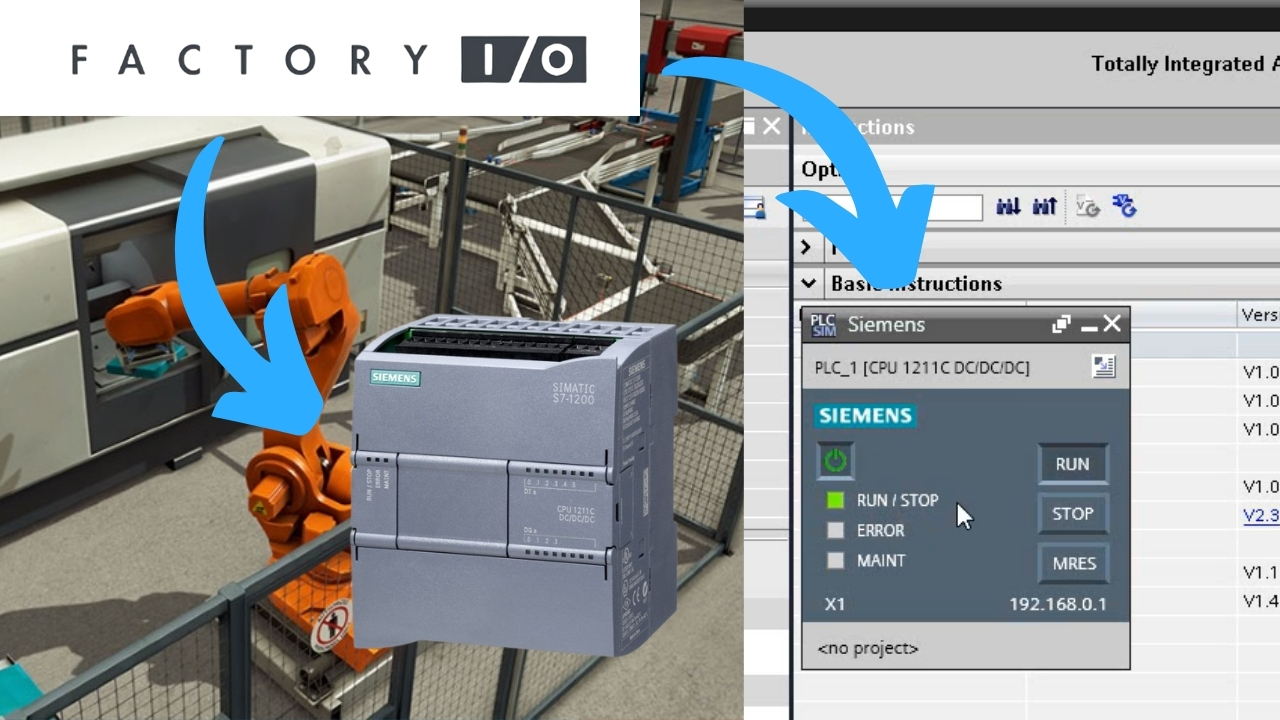
For these versions of TIA Portal, special template projects are available that enable proper communication between Factory I/O and the simulator. Without using a template, the connection will not work.
Download the appropriate template
- FactoryIO_Template_S7-1200_V15.zip – for S7-1200 PLCs
- FactoryIO_Template_S7-1500_V15.zip – for S7-1500 PLCs
👉 Templates marked as V15 are compatible with TIA Portal versions V15/16/17/18/19/20.
Configuring the Project in TIA Portal
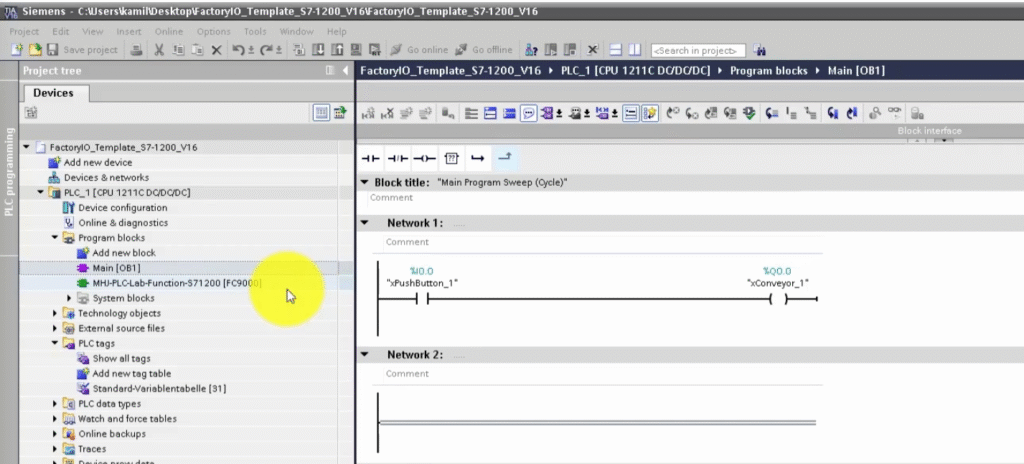
- Open the downloaded template project corresponding to your controller (S7-1200 or S7-1500).
- Save the project under a new name (e.g., MyFirstProject).
- You can now start writing your program.
⚠️ Warning: In the existing OB1 block there is already Network 1 – do not delete it, as it is required for communication with Factory I/O.
Running the Simulation in S7-PLCSIM
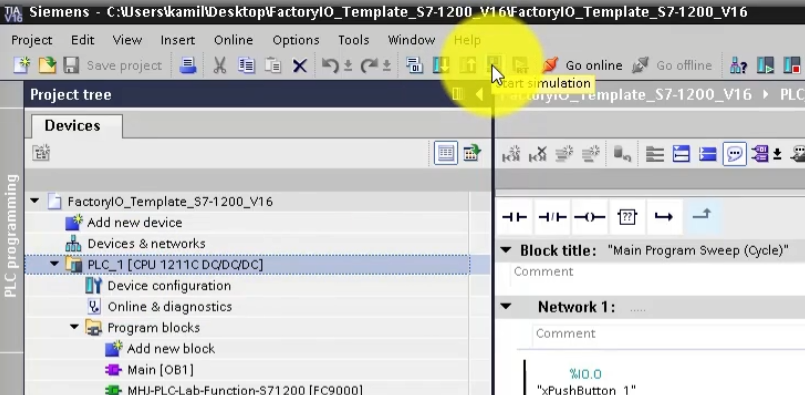
- Select the device and click Start Simulation.
- Choose PN/IE (1) as the type of PG/PC Interface.
- In the PG/PC Interface field, select PLCSIM S7-1200/S7-1500 (2).
- Click Start search (3), and after scanning is complete, select the device (4).
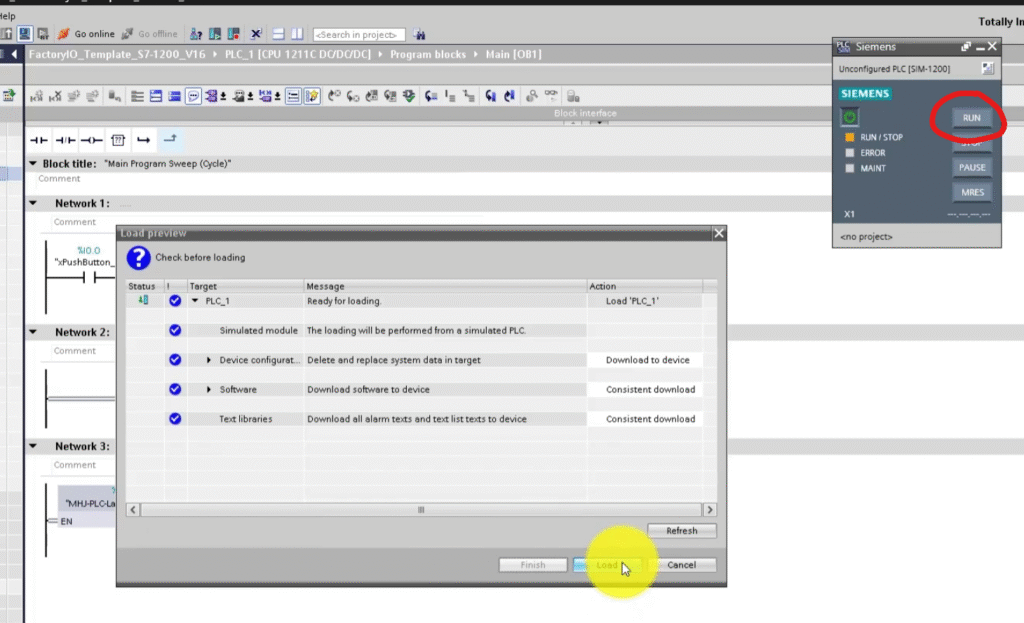
- Click Load (5) to load the program.
- In S7-PLCSIM, switch the CPU to RUN mode.
Connecting Factory IO to S7-PLCSIM
- In Factory I/O, go to FILE > Driver Configuration.
- Select Siemens S7-PLCSIM from the driver list.
- Click CONFIGURATION to open the configuration panel.
- Choose the appropriate CPU model (S7-1200 or S7-1500).
- Press Esc to return to the main driver window.
- Click CONNECT to establish the connection.
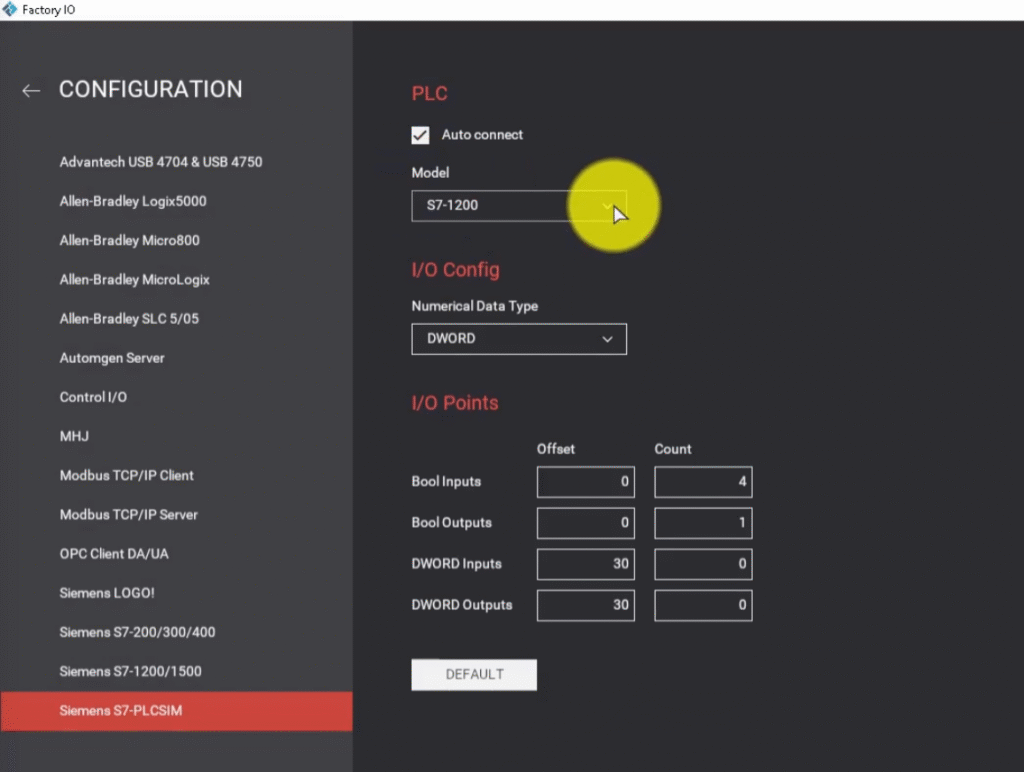
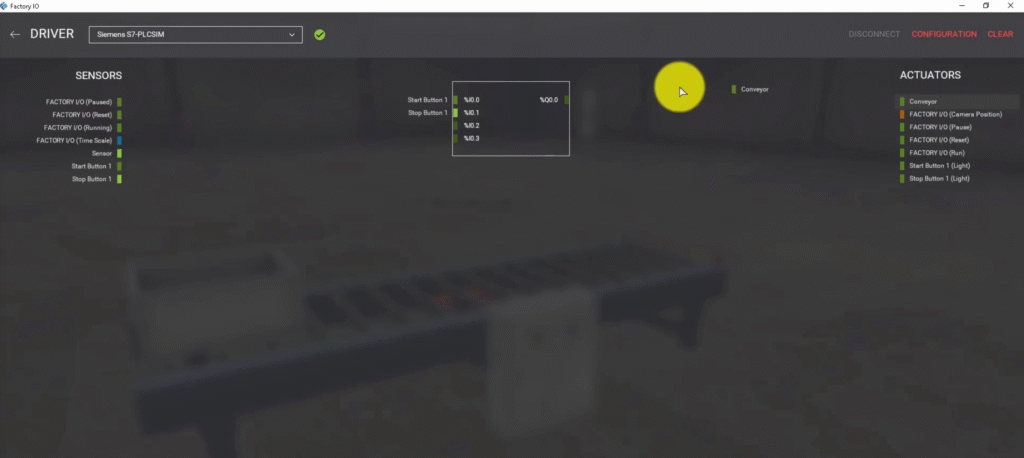
A successful connection is indicated by a green icon next to the selected driver and in the status bar.
Connecting Factory IO to Siemens S7-1200/1500 PLC
- In Factory I/O, go to FILE > Driver Configuration.
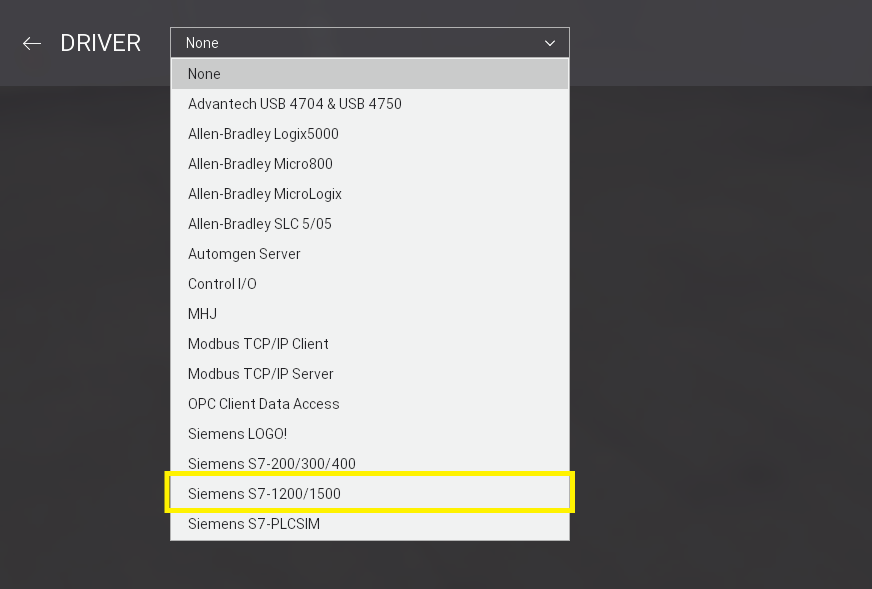
- Select Siemens S7-1200/1500 from the driver list.
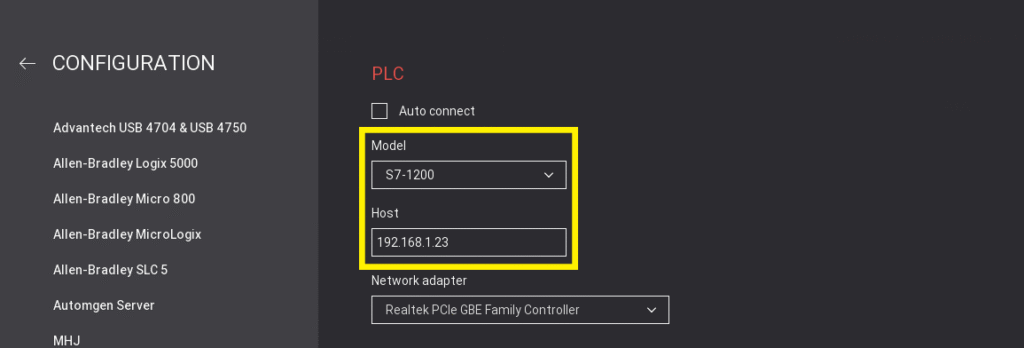
- Click CONFIGURATION to open the configuration panel.
- Choose the appropriate CPU model (S7-1200 or S7-1500).
- Enter the IP address of the controller, which you set during configuration in TIA Portal.
- Press Esc to return to the main driver window.
- Click CONNECT to establish the connection.
Summary
By using templates compatible with TIA Portal V15–V20, you can quickly set up an environment for learning PLC programming with Factory I/O and S7-PLCSIM. This connection allows you to test your own programs in a realistic virtual factory – without risking damage to real equipment and entirely within a simulation environment.
If you want to start learning PLC programming in virtual factory – check out our Premium Siemens PLC Programming Training in LAD and FBD.
FAQ
Start the simulation in TIA Portal, switch the CPU to RUN, then in Factory I/O select Siemens S7-PLCSIM, choose the CPU model, and click Connect. A green icon confirms the connection.
Check that:
CPU is in RUN mode
PN/IE interface is selected
Network 1 in OB1 is intact
Firewall isn’t blocking
TIA version matches the template
Factory I/O supports TIA Portal V15 to V20 with the correct templates.
Author