In this first lesson of our Codesys mini-course, we’ll write a very simple program that turns on a motor. Even if you don’t have real hardware yet, you’ll be able to follow along using the built-in Codesys simulator.
Step 1. Install and Launch Codesys
Download and install Codesys (this tutorial uses Codesys V3.5 SP19 Patch 4).
Open the Codesys Installer, which helps you manage different versions.
Click Start to launch the environment.
Step 2. Create a New Project
- In the project management screen, click New Project.
- Choose Standard Project.
- Select a folder (e.g. Documents) and name it CodeSys_Motor_V01.
- Select the device: Codesys Control Win V3 x64.
- Choose the programming language: Ladder Diagram (LD).
- Click OK - Codesys creates the project structure.
Step 3. Build the Ladder Logic
Open the default program: PLC_PRG.
From the Toolbox → Ladder Elements, drag:
- Normally Open Contact → represents the start button.
- Coil → represents the motor output.
Step 4. Declare Variables
In the declaration section between VAR and END_VAR, add:
VAR
    xStartBtn : BOOL; - Start button
    xMotorOnOff : BOOL; - Motor control output
END_VAR
👉 Rules:
- Use prefixes (x = BOOL).
- Use camelCase names (xStartBtn, xMotorOnOff).
Now, connect variables to the Ladder instructions:
- Contact → xStartBtn
- Coil → xMotorOnOff

Step 5. Test in Simulation
- Go to Online → Simulation.
- Choose Login and confirm.
- Click Start - your PLC is running.
- To test, double-click the contact. The variable xStartBtn changes to TRUE, which sets xMotorOnOff to TRUE → motor ON.
Shortcut: Ctrl + F7 writes values directly.
Step 6. Run It on Real Hardware (Optional)
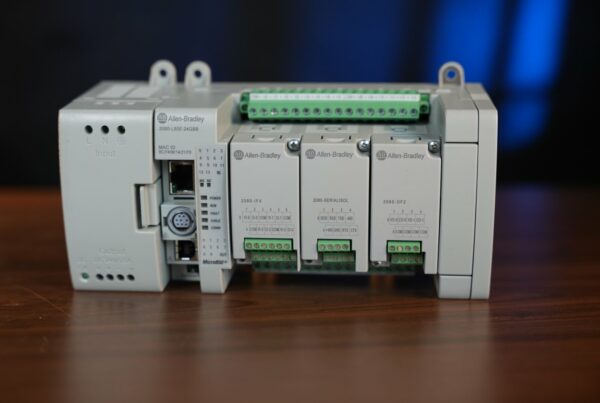
In this tutorial, Matt uploads the program to a Finder Opta PLC with extension modules connected to an inverter and motor.
But you can use WAGO PLCs, Raspberry Pi, or any other device supported by Codesys.
When the Start button is pressed:
- xStartBtn = TRUE
- PLC output goes high
- Inverter receives the signal
- Motor starts spinning 🚀
Conclusion
Congratulations! 🎉 You’ve just written and tested your first Ladder program in Codesys.
- You know how to declare variables.
- You know how to simulate logic without hardware.
- You know how to upload to a real PLC.
👉 In the next lesson, we’ll expand this project to add a Stop button and motor latch circuit.
Author